WordPress Appointment Booking: The Complete Guide
How WordPress appointment booking works, which features a booking plugin needs, and how to set up online scheduling that prevents double bookings.

Taking appointments by phone, email or contact form works while bookings are occasional. It stops working around the time customers are choosing between several services, more than one staff member and a calendar that changes every day. By then, someone on your team is spending hours a week answering “does Tuesday at 2 work?”
WordPress appointment booking moves that job onto your website. Customers see what you offer, pick a time that is actually free, enter their details and get a confirmation without waiting for anyone to reply. Your team gets a calendar of appointments in place of a pile of message threads.
This guide covers how it works, which features matter in a WordPress appointment booking plugin, how to set one up, and the decisions to make before you publish a booking page. We build a booking plugin ourselves (Schedopia), so we have opinions, but most of what follows applies whichever plugin you choose.
What is WordPress appointment booking?
WordPress appointment booking is the ability for visitors to schedule a service directly on a WordPress website, usually through a booking plugin. The plugin knows your services, staff and working hours, shows customers only the times that are free, and records each appointment in your WordPress admin.
A typical booking goes like this:
- The customer chooses a service.
- They pick a staff member, if there is more than one.
- The system works out which dates and times are available.
- The customer selects a slot and enters their contact details.
- The appointment is created, and both sides get a confirmation.
That looks simple from the outside. Behind it, the system has to account for working hours, service duration, staff availability, existing appointments, capacity and whatever other rules your business runs on.
This is also the difference between a booking system and a contact form. A contact form collects a request and leaves the scheduling to you. A booking system does the scheduling.
Why add online appointment scheduling to a WordPress site?
Convenience is the obvious reason. The less obvious one is that a proper booking system fixes several operational problems at once.
Customers can book when you’re closed
People often find a business in the evening or at the weekend. If booking means calling during office hours or waiting for an email, some of them won’t come back. Online scheduling lets them finish while they’re still interested.
The back-and-forth goes away
You know this conversation:
“Is Tuesday at 2 available?”
“No, but we have 3:30.”
“Does Wednesday morning work?”
When customers can only see times they can book, there is nothing left to negotiate.
Availability lives in one place
Without scheduling software, availability ends up spread across calendars, message threads, notebooks and what one person told another. A booking system holds the rules in one place, and staff see every upcoming appointment with its customer, service and status instead of searching their inbox.
Double bookings stop
Availability should update the moment a booking takes a slot. A reliable system also handles the harder case, where two customers try to take the last slot at almost the same second. More on that below.
Who needs an appointment booking system for WordPress?
Any business that sells time. That includes salons and barbershops, spas and beauty studios, clinics, dentists and therapists, tutors, coaches and consultants, personal trainers, photographers, lawyers, and repair or cleaning services.
The workflows differ, but the scheduling problem is the same in all of them: a service takes a set amount of time and can only happen when the right person or resource is free.
What should a WordPress appointment booking plugin do?
Booking plugins vary a lot. A basic one gives you a calendar and a handful of time slots. A more complete one models the actual rules of your business. These are the features that matter most.
| Feature | What it controls |
|---|---|
| Services and durations | What can be booked and how long it takes |
| Staff schedules | Who can provide it, and when |
| Working hours and days off | When bookings are possible at all |
| Buffer time | Preparation and cleanup between appointments |
| Capacity | How many customers can share one slot |
| Double-booking protection | Whether two people can take the same slot |
| Booking statuses | Pending, confirmed, completed, cancelled |
| Customer records | Contact details and booking history |
| Email notifications | Confirmations, changes and reminders |
| Payments | How and whether payment is recorded |
| Mobile booking form | Whether customers can book from a phone |
Services and durations
A service is the thing customers book. Each one usually has a name, description, duration, price, category, the staff who offer it and a capacity. A salon might list:
| Service | Duration |
|---|---|
| Haircut | 45 minutes |
| Haircut and beard trim | 60 minutes |
| Hair colouring | 120 minutes |
The durations do real work. If a colouring takes 120 minutes and the stylist has another client at 3:30 PM, the plugin can’t offer a 2:00 PM start. Availability has to be calculated from the full length of the appointment, so this is the first thing to check in any plugin you test.
Staff schedules
Once more than one person takes appointments, availability has to exist per person. One employee works Monday to Friday, another Tuesday to Saturday, and they may not offer the same services. For every slot, the plugin needs to know who can perform the service and whether that person is free.
Working hours, breaks and days off
Opening hours and bookable hours are rarely identical. You might take appointments from 9:00 to 17:00 on Monday, 10:00 to 18:00 on Tuesday and not at all on Wednesday. Some businesses need two working periods in a day with a break between them.
Then there are the exceptions: staff holidays, public holidays, the Friday someone leaves early. You should be able to block those dates without rewriting the regular weekly schedule.
Buffer time
Buffer time is extra time blocked before or after an appointment for preparation or cleanup. A 45-minute treatment with 10 minutes before and 15 minutes after takes 70 minutes of the calendar, while the customer still sees a 45-minute service. Salons, clinics and photography studios tend to need this. So does any consultant who wants ten minutes to read their notes before the next call.
Capacity
Not every appointment is one-to-one. A tutor might take four students in one session, and a workshop with two service bays can take two cars at once. Capacity sets how many bookings can share a slot before it disappears from the form.
Double-booking protection
We think this is the feature people underestimate most.
Picture one slot left at 10:00 AM. Two customers open the booking page within seconds of each other. Both see the slot and both press Book. A plugin that only checked availability when the page loaded will accept both.
The fix is to check again at the moment the booking is written, inside a database transaction, so only the permitted number of appointments can ever occupy a slot. If you have limited staff or capacity, ask how a plugin handles this before you ask about anything else.
Booking statuses
Appointments move through states: pending, confirmed, completed, cancelled. Statuses let the calendar reflect what is really happening. If you approve appointments by hand, every new booking can start as pending and become confirmed once you’ve looked at it.
Customer records
Each booking should attach to a customer record with a name, email address, phone number and booking history. When a regular calls, you can see their past appointments without digging through other systems.
Email notifications
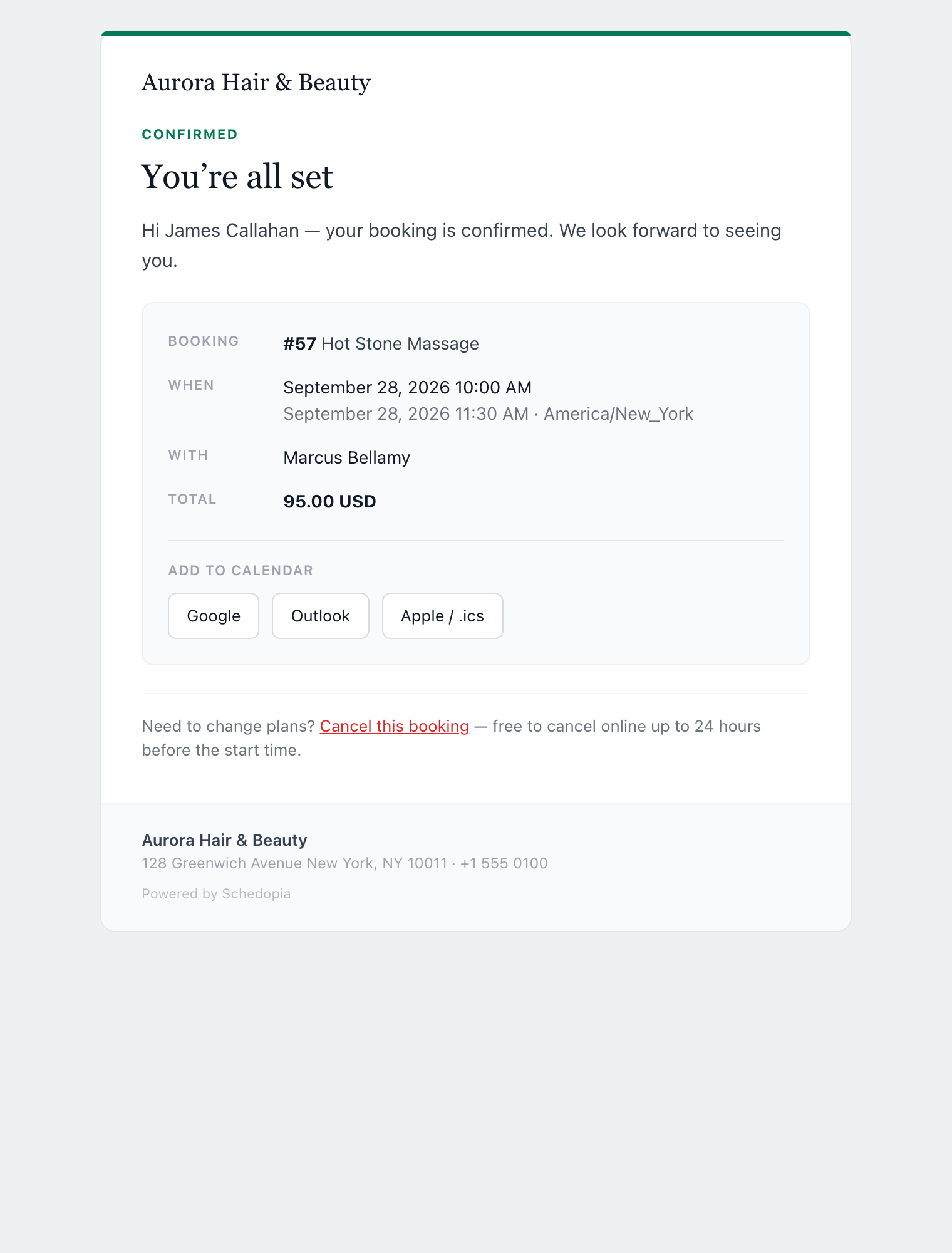
Customers shouldn’t have to wonder whether a booking went through. At minimum, the plugin should send a confirmation when an appointment is created and a notice when its status changes. Reminders before the appointment are worth having too, because they are a cheap way to reduce no-shows.
Payments
Some businesses charge at the time of booking, and others take payment in person. Decide which you are, then check the plugin supports it, whether that means online payment, cash, bank transfer or pay on arrival. Even when the money changes hands outside WordPress, being able to mark a booking as paid or unpaid saves admin later.
A mobile-friendly booking form
Many of your customers will book from a phone. The form has to be designed for a small screen, which is a higher bar than merely working on one. Choosing a service, moving through the calendar, picking a time and entering details should all be possible without zooming or hunting for tiny buttons.
Hosted booking software vs a self-hosted WordPress booking system
One of the first decisions is where your booking system lives. With hosted software, it runs on another company’s platform and you embed or link to it from your site. With a WordPress booking plugin, it runs as part of your own website.
| Hosted booking software | Self-hosted WordPress booking plugin | |
|---|---|---|
| Where it runs | The provider’s platform | Your own WordPress site |
| Where customer data lives | The provider’s servers | Your own database |
| Typical cost | Monthly subscription, sometimes with per-booking fees or usage limits | Often free or a flat licence fee, plus your hosting |
| Maintenance | Handled by the provider | You keep WordPress and the plugin updated |
| Control | Pricing, terms and feature tiers can change | The system and its data stay with you |
Hosted services are convenient because someone else runs the infrastructure. The trade-offs, depending on the provider, are recurring fees, features locked to pricing tiers and a customer list that lives on someone else’s servers.
We’re on the self-hosted side of this argument, and we’ve made the full case for self-hosted booking elsewhere. Neither model is right for every business. What matters is knowing which one you’re buying: booking built into your own site, or your site connected to an outside platform.
How to set up appointment booking in WordPress
The screens differ from plugin to plugin, but the process is much the same everywhere.
Step 1: Choose and install a WordPress scheduling plugin
Pick a plugin that matches how your business schedules appointments. Don’t compare on feature count. Compare on whether it supports your core workflow:
- Do you offer several services with different durations?
- Do different staff provide different services?
- Does each staff member have their own availability?
- Do you need buffer time?
- Can more than one person book the same slot?
- Do you need payments or calendar synchronisation?
A plugin that models your workflow cleanly beats one with dozens of features you’ll never switch on.
Step 2: Create your services
Add each service customers can book and give it a clear, customer-facing name. “30-minute initial consultation” tells people far more than “Consultation”. Then set its duration, price and any scheduling rules.
Step 3: Add staff
Create the people who provide those services. For each one, set the services they offer, their regular working hours, their days off and their capacity. If you work alone, you are the one staff member, and the same model applies.
Step 4: Set your availability
Enter the hours each person can take appointments. Then add the constraints: minimum notice, maximum advance booking period, buffer time, days off and capacity.
The test is simple. Could you honour every slot the form shows?
Step 5: Configure the booking form
A sensible flow is:
Service → Staff → Date and time → Customer details → Confirmation
Ask for enough information to carry out the appointment and nothing more. Every extra field or step loses a few people.
Step 6: Add the form to a page
Create a dedicated page such as yourwebsite.com/book or yourwebsite.com/appointments. Depending on the plugin, you add the form with a block or a shortcode. Link to the page from your main navigation and from each relevant service page.
Step 7: Make a real test booking
Don’t stop when the form appears on the page. Book an appointment as a customer would, and check that:
- the right services and staff appear
- unavailable times are hidden
- service duration and buffers are respected
- the booking shows up in the admin
- the confirmation email arrives
- the whole thing is comfortable on a phone
A test booking catches problems you can’t see from the settings screen. If you’re using Schedopia, Take your first booking in ten minutes walks through these steps.
How to design a booking page customers finish
The booking form decides whether people complete the process. A few habits help:
- Show real, bookable times. Nobody should have to suggest three dates and wait for a reply.
- Keep the steps few. For most appointment businesses a name, email address and phone number are enough.
- Explain the difference between similar services, so people don’t book the wrong length or type.
- Show fixed prices before the booking is submitted. A surprise at the last step sends people away.
- Book an appointment yourself from a phone. Calendars that look fine on a desktop can be awkward on a narrow screen.
- Say what happens next: whether the appointment is confirmed or awaiting approval, when the email will arrive, and how to make a change.
Booking rules to decide before you launch
Should customers have to create an account?
For most appointment businesses, no. People will happily give a name, email and phone number, but many hesitate when asked to create a password on a site they’re using for the first time.
Accounts make sense when customers need ongoing access to appointment history or membership features. A useful test is whether the account helps the customer or only helps the software.
How far in advance should customers be able to book?
There is no universal answer. A medical practice may take bookings months ahead, while a small service business may only want to open the next few weeks. Two settings control this.
Minimum notice is how close to the start time someone can still book. Requiring two hours’ notice stops a 10:00 AM appointment being booked at 9:58.
The maximum advance period is how far into the future the calendar is open. Capping it keeps appointments from landing beyond the point where staff schedules are reliable.
How should cancellations work?
Decide your policy before you open online booking:
- How much notice must customers give?
- Can customers cancel themselves, or does staff have to do it?
- What happens to any payment already made?
- Does the freed slot become bookable again straight away?
The booking system should enforce the policy for you. If it can’t, you’ll be managing cancellations by hand.
Booking for multiple staff members and group sessions
Multiple staff members
Suppose three barbers offer the same haircut. After the customer picks the service, the system can either ask them to choose a barber or show availability across all three.
Both work. Choosing a person suits customers who have a favourite. An “any available staff member” option makes it easier to find the earliest appointment. Either way, availability has to be calculated separately for each person.
Group sessions
Suppose a coach runs a 4:00 PM session with room for six. The system needs to count remaining places instead of treating the time as simply free or taken. The slot stays open until the sixth booking.
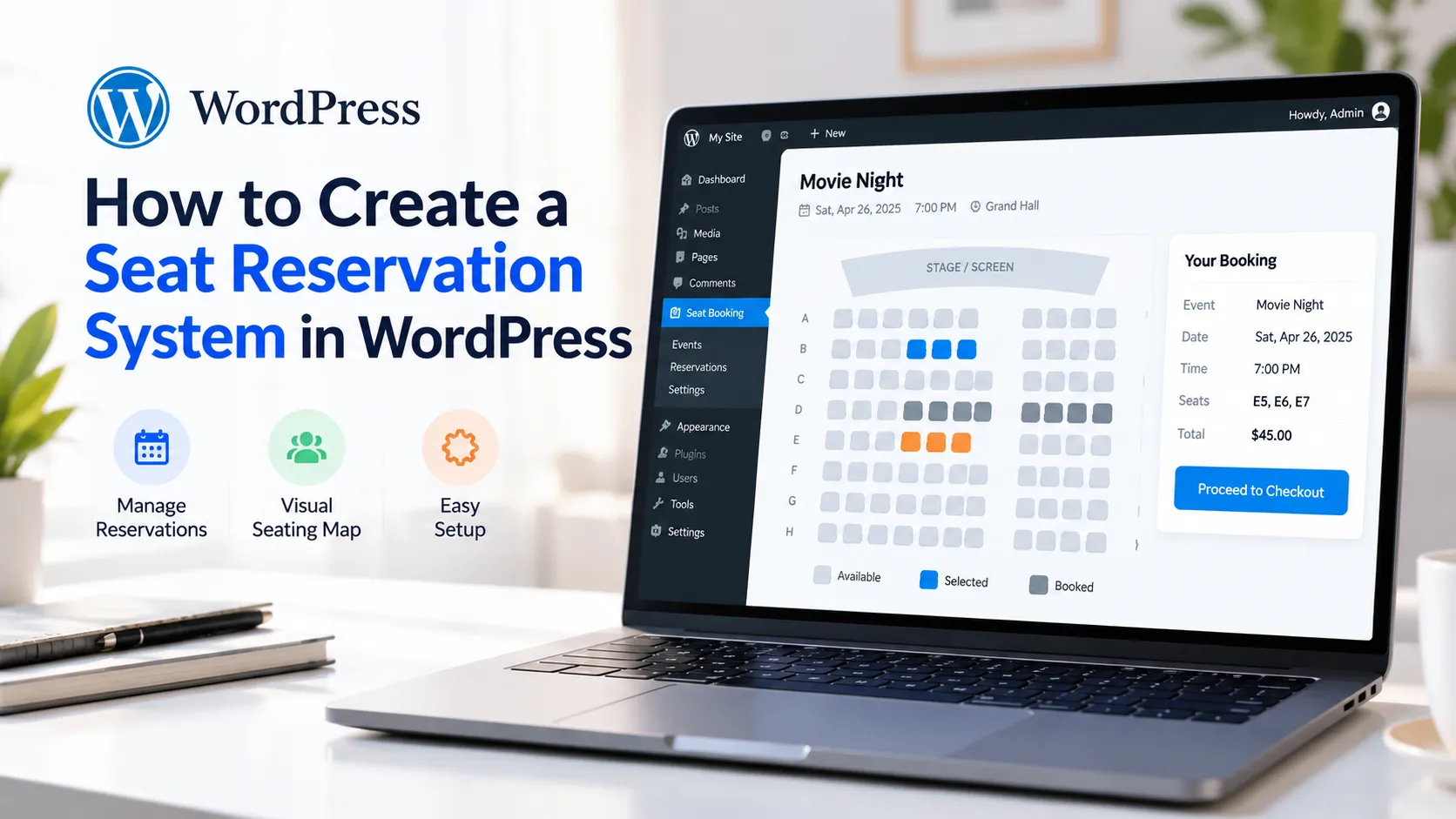
This is different from seat-specific event booking, where customers choose a particular seat from a venue map.
Appointment booking vs event booking
The two are related, but they solve different problems.
| Appointment booking | Event booking | |
|---|---|---|
| What is reserved | A block of time with a person or resource | A place at a scheduled event |
| Examples | Haircut at 10:00 AM, consultation at 2:30 PM, dental appointment at 9:15 AM | Theatre performance, workshop, class, seminar |
| Availability comes from | Staff schedules and service duration | Event capacity or a seat map |
Some events only have a capacity. Others use assigned seating, where the customer picks specific seats. If your business runs both appointments and events, it’s worth asking whether one system can handle both. We covered the seating side in How to create a seat reservation system in WordPress.
WordPress appointment booking and SEO
Adding a booking form won’t improve your rankings by itself. Your booking pages can still support a local and service SEO strategy.
Don’t rely on one generic booking page. Build service pages around what customers search for. A barber might have pages for a men’s haircut, a beard trim, and a hair and beard package. A consultant might have an initial consultation, a strategy session and a follow-up.
Each page explains the service and leads into booking. Someone reading about a specific service already intends to buy, so put the booking call to action beside that content and don’t make them navigate elsewhere and choose the service again:
Google search → Service page → Check availability → Book
Search engines get useful, specific pages, and visitors get a short route from finding you to booking you.
How Schedopia handles WordPress appointment booking
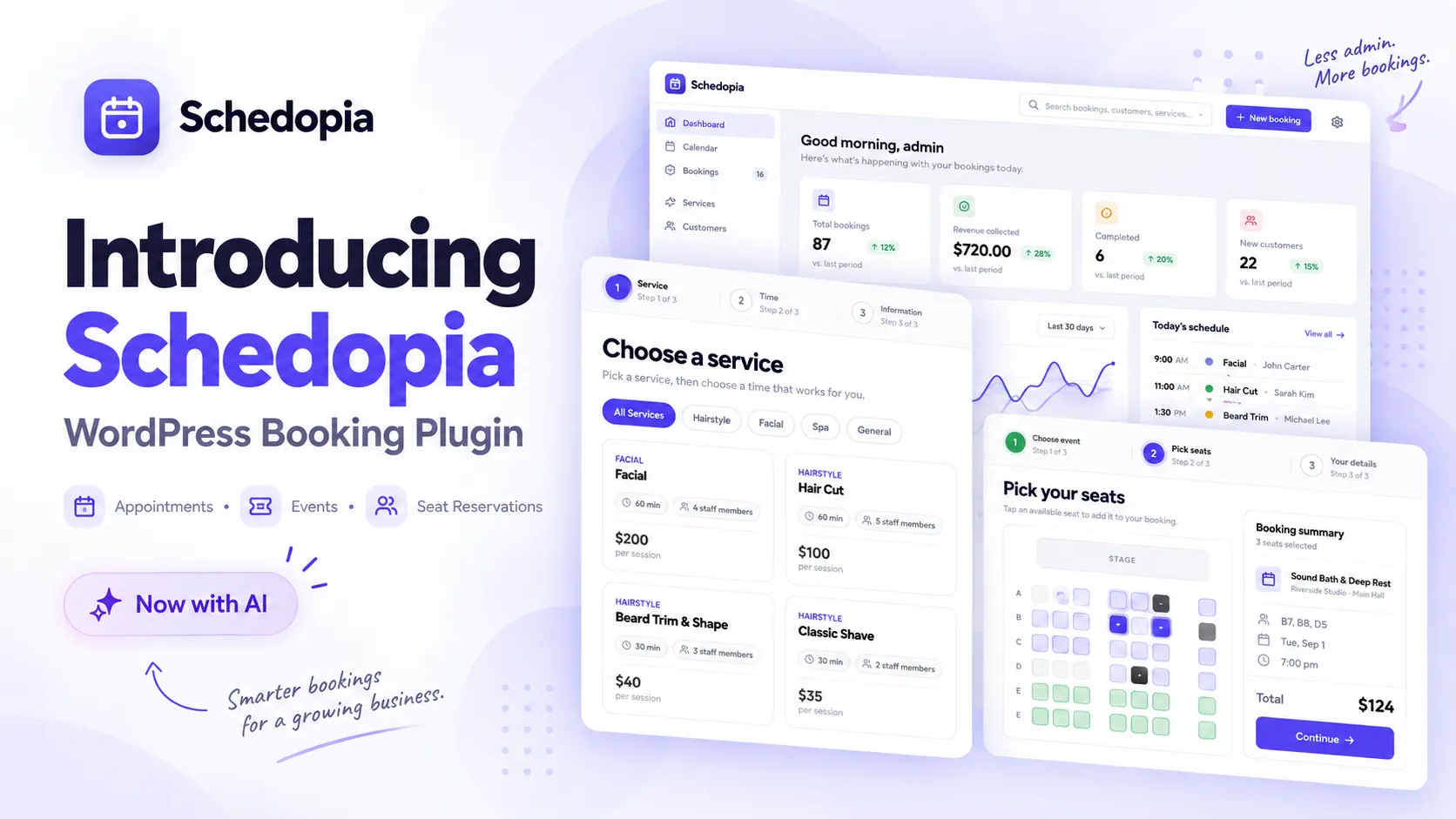
Schedopia is our free, self-hosted WordPress booking plugin for appointments, event seat reservations, or both. There are no per-booking fees, and bookings and customer records are stored in your own WordPress database.
For appointments, it covers the features described above:
- Services with categories, prices and durations, plus add-ons that extend both the appointment and the time blocked on the calendar
- Staff members with their own weekly hours and days off
- Buffers, capacity, slot interval and minimum notice, set once for the business and overridden per service where needed
- A transactional double-booking guard that re-checks availability as each booking is created
- Email confirmations, cancellation notices, new-booking alerts for your team, and reminders
- Automatic confirmation or manual approval of new bookings
- Self-service cancellation from a link in the customer’s email, with no account needed
- Customer records with booking history, and cash or bank-transfer payments recorded against each booking
The booking form goes on any page with the [schedopia_booking] shortcode. If you also run workshops, classes or shows, the same plugin handles dated events with visual seat maps. The features page has the full list.
Which Schedopia shortcode goes where
Schedopia has three shortcodes for your pages, and the booking form one takes options. Paste them into any page or post. They also work inside the block editor’s Shortcode block and Elementor’s Shortcode widget.
| Shortcode | What it shows, and where it fits |
|---|---|
[schedopia_booking] |
The booking form, on your main booking page |
[schedopia_booking service="haircut"] |
The form with that service already chosen, on each service’s own page |
[schedopia_services] |
Your services as cards, each with a Book button, on a services or prices page |
[schedopia_events] |
Upcoming events with the date, venue, seats left and starting price, on an events or classes page |
[schedopia_booking mode="event"] |
The seat-reservation flow on its own, on a separate events booking page if you take both |
[schedopia_booking event="opening-night"] |
One event’s seat map, on that event’s own page |
The service option is the service-page route from the SEO section above. Put [schedopia_booking service="mens-haircut"] on the men’s haircut page and the form opens with that service selected, so the visitor goes straight to choosing a barber and a time. Use the service’s slug or its id.
The services list covers the other route: one page showing everything you offer. Each card’s Book button opens your booking page with that service already chosen. A few options narrow or reshape a list:
category="hair"lists one category of services; separate several with commas.venue="main-hall"does the same for events.hide_sold_out="yes"leaves full events out. Without it, they stay listed as Fully booked.booking_page="book"sends one list’s buttons to a different page.layout="list"orcolumns="3"changes one list’s layout. Every list’s default look (grid or list, one to four columns, which details each card shows) is set under Schedopia → Design.
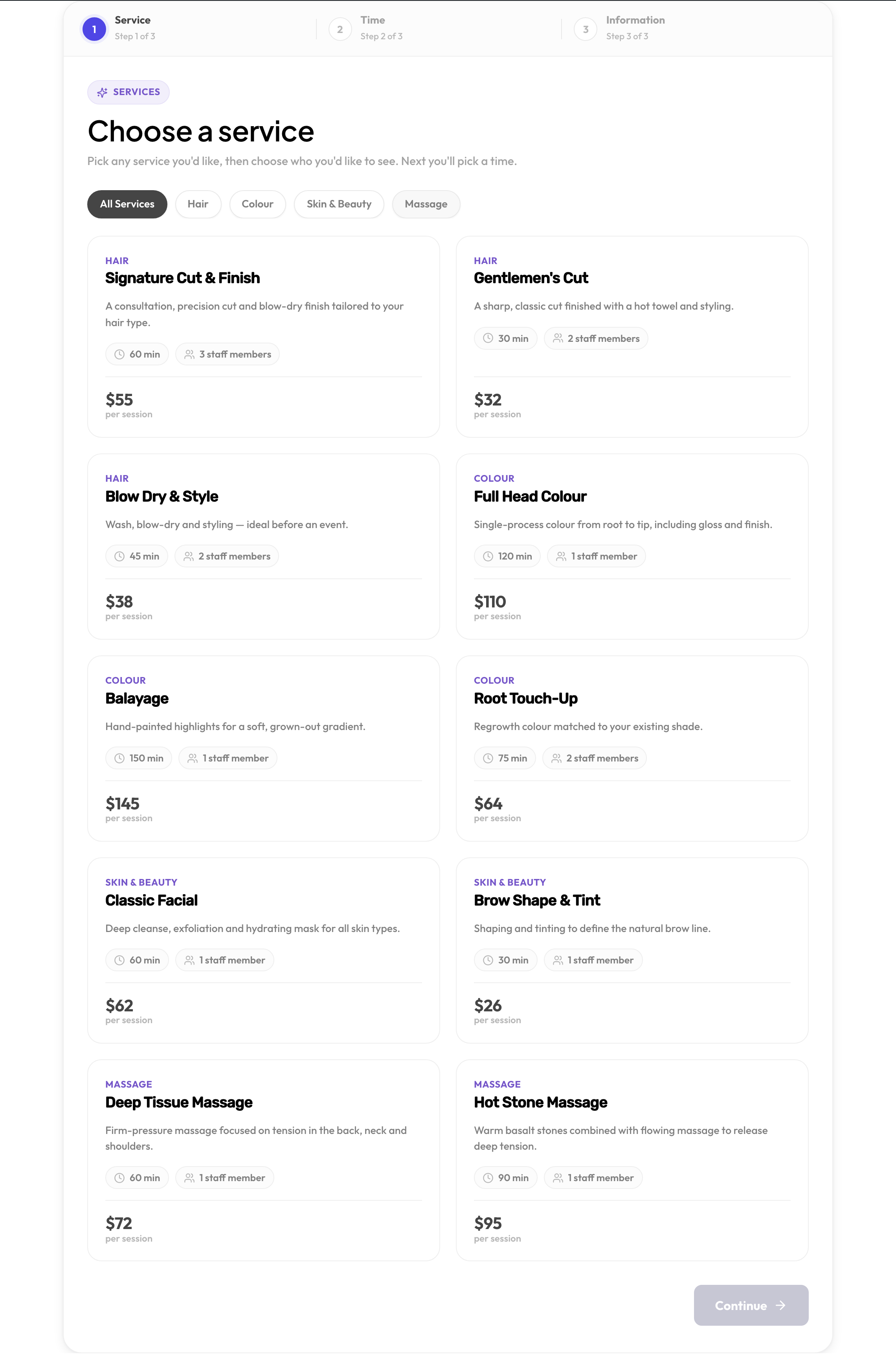
Two limits are worth knowing. Only one booking form can appear on a page, though a services or events list can share the page with it, and its buttons then open the form right there. And there is no dedicated Schedopia block or Elementor widget yet, so the shortcodes go inside the editor’s own Shortcode block or widget. Schedopia → Settings → Shortcode has every example ready to copy, and lets you choose or create the page the list buttons open.
WordPress appointment booking checklist
Before you publish a booking page, make sure you can answer these:
- What services can customers book, and how long does each take?
- Which staff members provide each service, and when are they available?
- Do appointments need buffer time?
- Can more than one customer share a slot?
- How far ahead can customers book, and how much notice is required?
- What happens when an appointment is cancelled?
- Are customers notified after booking?
- Does the booking form work comfortably on a phone?
- Can two customers accidentally book the same slot?
- Where is customer and booking data stored?
- How will staff see and manage upcoming appointments?
- How are payments recorded?
If your WordPress booking system can represent those rules accurately, most of the hard work is done.
Where to start
Start with your scheduling rules, not with a plugin comparison. Write down your services, how long each takes, who provides them, when those people work, how many customers fit in a slot, and your notice and cancellation policies.
Then choose the WordPress appointment booking plugin that can enforce those rules without workarounds. A plugin that can show a calendar but can’t represent how you actually take appointments will have you back on the phone within a month.
Frequently Asked Questions
Can WordPress handle appointment booking?
Yes. A WordPress booking plugin adds services, staff schedules, availability and a customer-facing booking form to your site. Customers choose a service, pick a free date and time, enter their details and book without contacting you.
What is the difference between a contact form and a booking system?
A contact form collects a request, and you still have to check your calendar and reply. A booking system knows your availability, shows only free times and creates the appointment itself.
Can WordPress prevent double bookings?
Yes, if the booking plugin validates availability at the moment each appointment is created. Checking only when the page loads is not enough, because two customers can see the same free slot at the same time.
Can different staff members have different schedules?
Yes. A multi-staff booking plugin gives each person their own working hours, days off and assigned services, and calculates availability for each one separately.
Can I offer appointments of different lengths?
Yes. Each service has its own duration, such as 30 minutes for a short consultation and 90 minutes for a longer session. The plugin uses that duration to work out which start times are still available.
Do I need WooCommerce for WordPress appointment booking?
Not necessarily. Some booking plugins rely on WooCommerce for payments and orders, while others, Schedopia included, run their own booking workflow without it. It depends on how you want payments handled.
Can I take bookings without accepting online payments?
Yes. Many businesses let customers reserve online and pay in person, by bank transfer or by another offline method, then record the payment against the booking.
Is there a free WordPress appointment booking plugin?
Yes. Several booking plugins in the WordPress.org directory are free or have free versions. Schedopia is free and self-hosted, with no per-booking fees.
Can I manage appointments and event bookings on the same WordPress site?
Yes, if your booking system supports both. Schedopia handles appointment scheduling and event reservations with seat maps from the same plugin.