Schedopia 1.4.3: Customer Accounts and a My Bookings Page
Schedopia 1.4.3 adds customer accounts: a My bookings page where customers see, cancel and rebook their appointments, plus a limit on bookings per hour.

A regular who books every five weeks ends up with a stack of confirmation emails. When they want the date of the next appointment, they search their inbox, and when they want to book the same thing again, they start the booking form from scratch or phone you. Until now, Schedopia had nowhere else to send them.
Schedopia 1.4.3, out now on WordPress.org, adds customer accounts. A customer signs in to a My bookings page on your own site, sees what they’ve booked, cancels within your rules and starts the same booking again with one click. Accounts are optional for the customer, and they’re on by default for you, which is the one thing to know before you update: the first time you open Schedopia’s admin afterwards, it publishes two new pages.
The release also adds a limit on bookings per hour, gives the booking form more room, and fixes a bug where answering the 1.4.2 timezone notice could move events by hours.
Customer accounts and a My bookings page
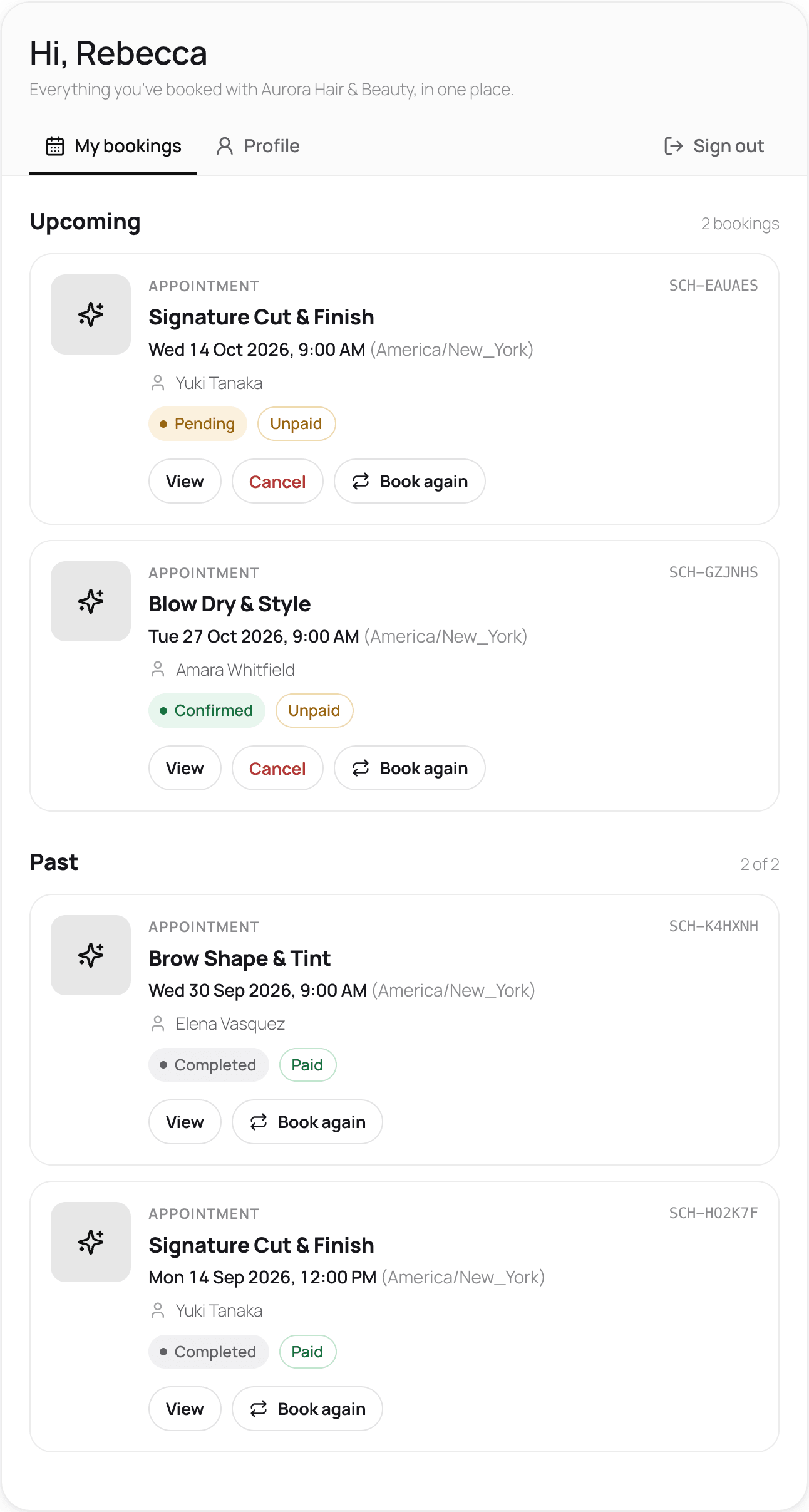
Schedopia’s customer accounts give each customer a My bookings page on your site, listing their upcoming and past appointments and seat reservations in your timezone. Each upcoming booking has three buttons, and past ones keep View and Book again:
- View opens the details, with the add-to-calendar links.
- Cancel cancels it, up to your cancellation cut-off, the same rule the link in the confirmation email follows.
- Book again opens your booking page with the same service already chosen, or the same event if it still has seats.
The Profile tab is where customers update their name and phone and change their password. Changing the email sends a 6-digit code to the new address first, and the new address becomes their sign-in.
Each account is a WordPress user with a new Schedopia Customer role, which can only read. A customer who opens wp-admin is sent to My bookings instead, and they don’t see the WordPress toolbar. Signed in, a customer finds the booking form already filled in with their details, with a Book for another person button that clears them.
How customers get an account
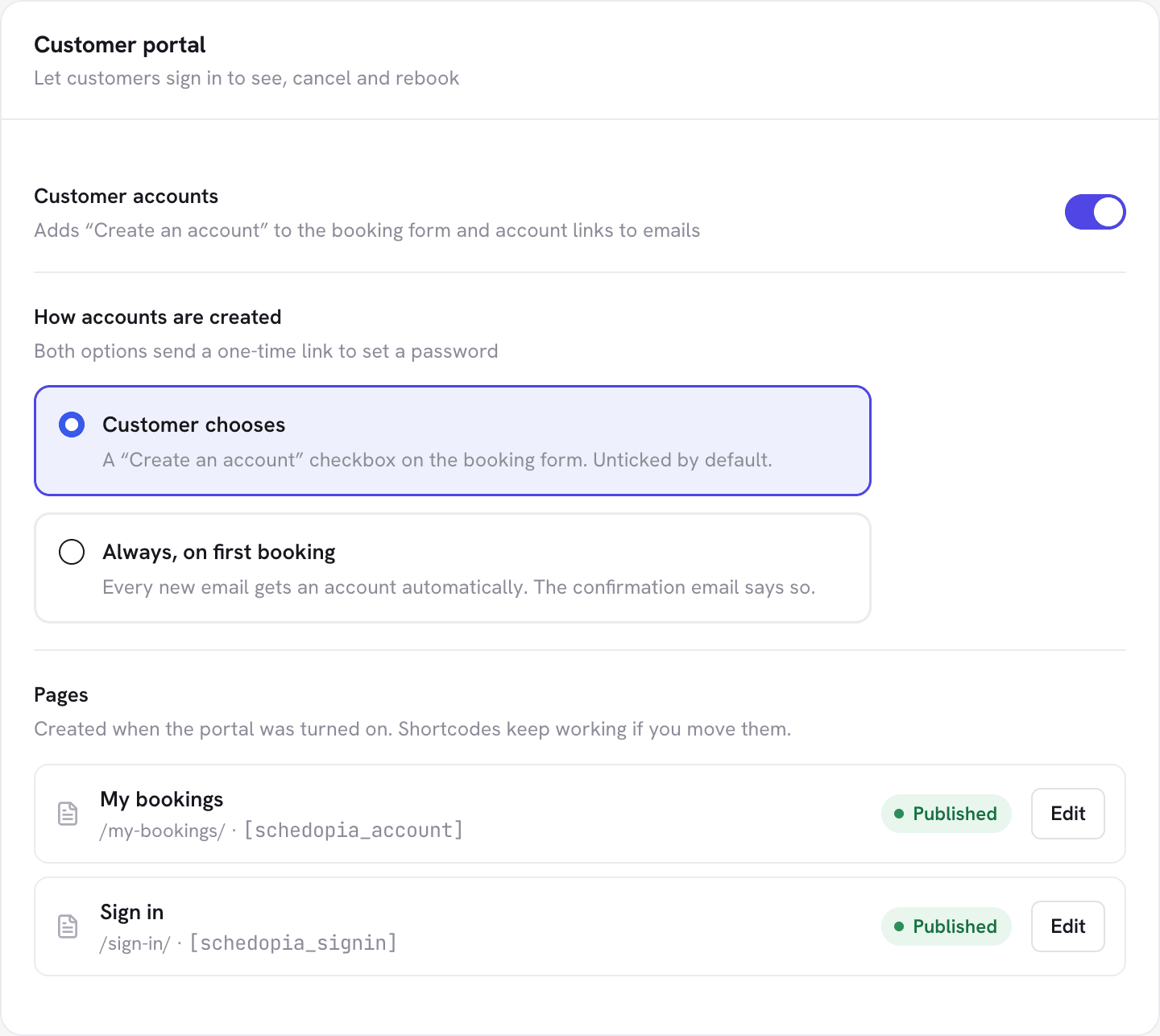
Schedopia makes accounts in one of two ways, chosen under Settings → Customer portal, and both send a one-time link to set a password, so nobody fills in a registration form.
- Customer chooses, the default, adds a “Create an account” tick box to the booking form, unticked.
- Always, on first booking makes an account for every new email address, and the confirmation email says so.
The choice is a trade-off. Always means every regular has an account from their first visit, but it also adds a WordPress user for every one-off booker, including people who will never come back. Customer chooses keeps your user list to the people who want an account, at the cost of some regulars never ticking the box.
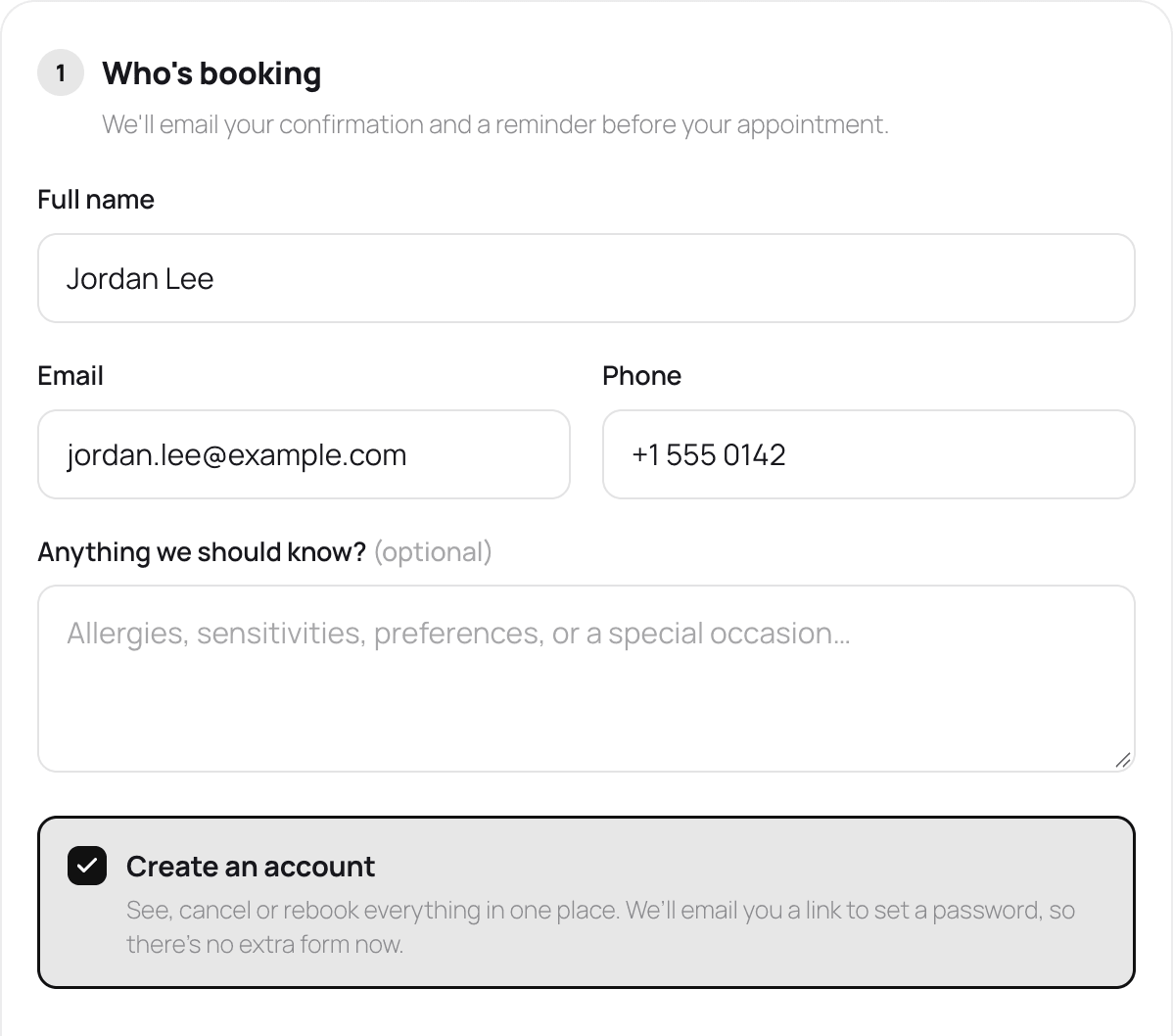
The confirmation, request received and reminder emails now carry an account link that fits the customer: set a password if the booking just made their account, sign in if they already have one, or create one if they don’t. The Sign in page takes a username or email and a password, and handles forgotten passwords with a reset link.
A returning customer who ticks the box again, with an email that already has an account, is asked to use a different email or untick the box. The message deliberately doesn’t say the account exists, so the form can’t be used to check who books with you; the customer should sign in instead.
Booking without an account still works, and so does the cancel link in the email. Bookings made earlier with the same email address show up in the account once it exists, because Schedopia links the customer record, not individual bookings.
Account tools under Customers
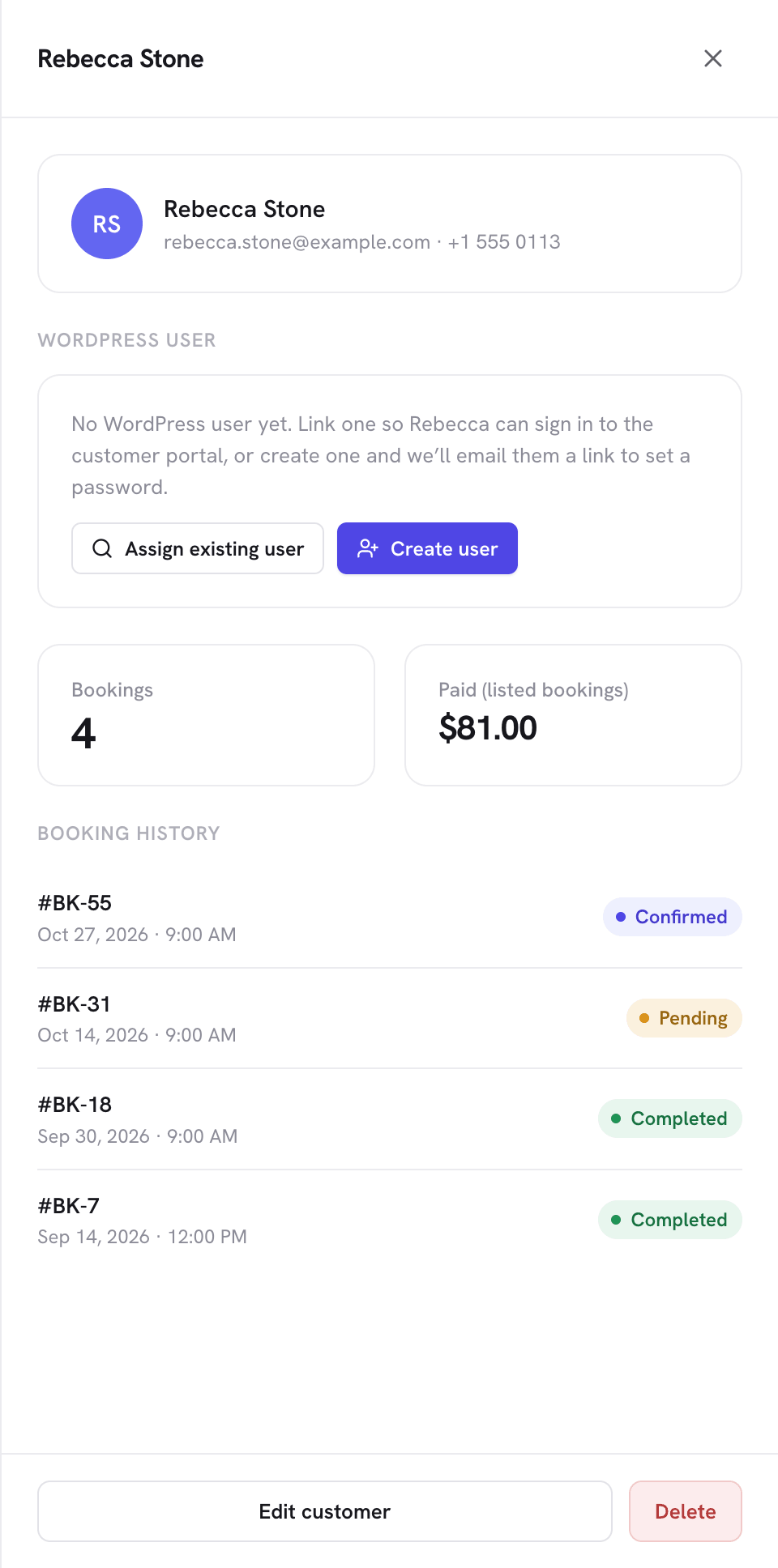
Each customer in Schedopia’s Customers screen now has a WordPress user section. Assign existing user links the customer to an account they already have on your site, and Create user makes one, as a Customer or a Subscriber, and emails them a link to set a password. A linked customer can be unlinked again.
From a booking, you can create an account for its customer, or move the booking to another customer when someone booked with the wrong email.
A limit on bookings per hour
Schedopia 1.4.3 adds Bookings per hour under Settings → Booking rules: the most new bookings one visitor can make in an hour, 20 by default. A signed-out visitor is counted by connection and a signed-in customer by account, and you and your staff are never counted. A visitor is counted when a booking is made, so a taken slot or a typo doesn’t use up the allowance.
The limit is there for bots and double-submits; real customers rarely reach it. A visitor who does is told to try again a little later or to call you.
Smaller improvements
- A wider booking form. The form fills the width of its container, the steps get more room beside the booking summary, and each new step scrolls back to the top of the form.
- The timezone under “Choose a time”, so customers know which clock they’re booking against before they pick.
- A friendlier seat map. It opens centred on the stage, and its legend uses the seat colours and shows each tier’s price.
- Seat counts in the bookings list. An event booking shows how many seats it holds.
- Card titles in Design: set the titles on the services and events cards in your heading font or your text font.
Fixes
Events moved by the 1.4.2 timezone notice. On sites updated to 1.4.2, answering the timezone notice after adding new events could move those events, and their seat bookings, by hours. Schedopia 1.4.3 converts only events created before the update. If yours moved, the WP-CLI command wp schedopia timezone repair-events puts them back. Add --shift with the hours to move them by, check first with --dry-run, and use --ids to move only some, as in wp schedopia timezone repair-events --shift=6 --ids=12,13 --dry-run.
The {time} email tag no longer drops the closing bracket after the timezone, so “7:00 PM (America/New_York)” reads as it should.
The changelog lists all 12 changes in 1.4.3.
What 1.4.3 doesn’t change
Schedopia is still free and self-hosted. Customer accounts are ordinary WordPress users in your own database, with no Schedopia account service in between. If an earlier post of ours told you Schedopia has no customer accounts, this is the release that changed it.
Some things are still missing. Customers can cancel and rebook from My bookings, but moving an appointment to another time is still done by you. There is no online card payment yet (that is planned for Schedopia Pro), no SMS and no recurring bookings. Schedopia doesn’t yet plug into WordPress’s Export Personal Data and Erase Personal Data tools, which matters more now that customers are WordPress users. For whether accounts suit your business at all, the complete guide to WordPress appointment booking has a short section on when an account helps the customer.
Updating to Schedopia 1.4.3
Update from the Plugins screen as usual, then open Schedopia once. It publishes the My bookings and Sign in pages, usually at /my-bookings/ and /sign-in/. They aren’t added to your menu, so add My bookings where customers will look for it, next to your booking page link. Then open Settings → Customer portal and pick how accounts are made, or switch accounts off if you’d rather not offer them.
If you updated to 1.4.2 and added events before answering its timezone notice, check those events’ times now, and use the repair command above if any moved.
Frequently Asked Questions
Does Schedopia have customer accounts?
Yes, since version 1.4.3. Customers who have an account sign in to a My bookings page on your site to see their upcoming and past bookings, cancel within your cut-off and book the same service or event again. Accounts are on by default and can be turned off under Settings → Customer portal.
Do customers have to create an account to book with Schedopia?
No. By default the booking form shows a Create an account tick box, unticked, and booking with just a name and email still works, as does the cancel link in the confirmation email. You can instead choose to have an account made for every new email.
Will updating to Schedopia 1.4.3 change my site?
Slightly. Customer accounts are on by default, so the first time you open Schedopia's admin after updating, it publishes a My bookings page and a Sign in page, and the booking form gains the Create an account tick box. Existing bookings don't change.
Are Schedopia customer accounts WordPress users?
Yes. Each account is a WordPress user with the Schedopia Customer role, which can only read. Customers are sent to My bookings if they open wp-admin and don't see the WordPress toolbar. If you delete the user, the customer record and its bookings stay, as a guest.
Can customers reschedule an appointment from My bookings?
No. In Schedopia 1.4.3 customers can view, cancel within your cancellation cut-off and book again from My bookings. Moving an appointment to another time is still done by you, from the admin.
My events moved by hours after the 1.4.2 timezone notice. How do I fix them?
Update to 1.4.3, then run wp schedopia timezone repair-events with --shift set to the number of hours to move them, for example --shift=6. Add --dry-run to see what would change first, and --ids to move only some events.
Is Schedopia 1.4.3 a free update?
Yes. Schedopia is free on WordPress.org with no per-booking fees, and 1.4.3 updates from the Plugins screen like any other release.