Schedopia 1.5.0: Gutenberg Blocks and Elementor Widgets
Schedopia 1.5.0 adds Gutenberg blocks and Elementor widgets for your services, events, categories, staff and venues, and booking forms limited to one person.

A customer who wants a cut with Daniel shouldn’t have to scroll past facials and massages to find one. On most small salon sites they do. The team page has six faces and one Book now button, the booking form opens on the full menu, and the customer picks Daniel out of a list two steps later, if they remember to.
Schedopia 1.5.0, out now on WordPress.org, lets the page decide where the booking starts. It adds Gutenberg blocks and Elementor widgets for five lists, three of them new: services, events, categories, staff and venues. Each card opens the booking form already narrowed to what the customer clicked, so Book on Daniel’s card offers only Daniel’s services.
The booking form itself can now be limited the same way, to chosen services, a category, one person, chosen events or a venue. The release also keeps category slugs steady through a rename, and fixes a bug that let the next appointment start inside the previous one’s clean-up time.
Gutenberg blocks and Elementor widgets for every Schedopia list
Schedopia 1.5.0 adds five Gutenberg blocks and five matching Elementor widgets: Services List, Events List, Categories List, Staff List and Venues List. In the block editor they sit together in a Schedopia group at the top of the inserter, and in Elementor in a Schedopia group in the widget panel. Before 1.5.0, the services and events lists went in only as shortcodes typed into a Shortcode block.
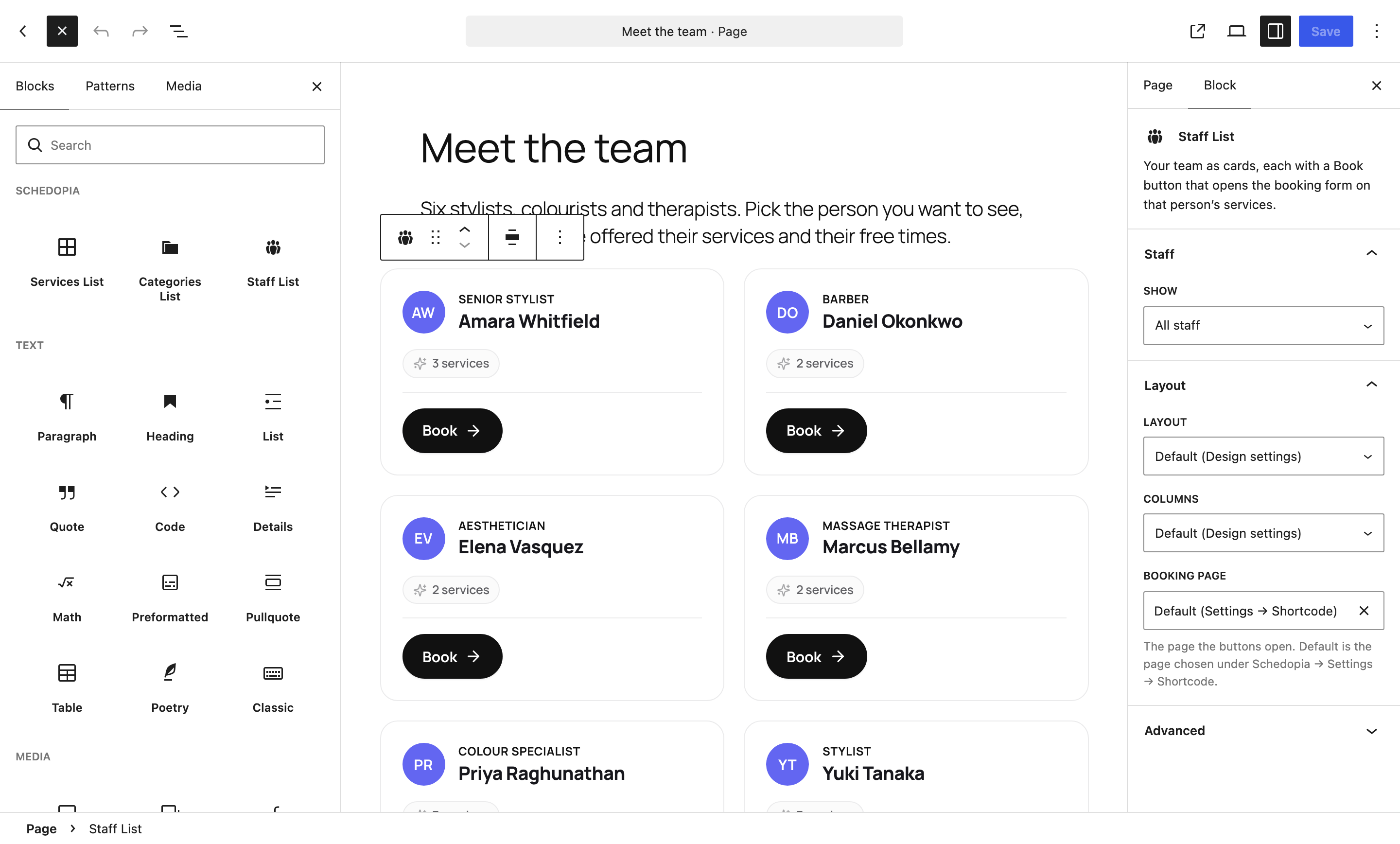
Every list block and widget has the same short set of settings:
- Show: everything, or only what you pick by name. The services list can also show the services in some categories, and the events list the events at some venues.
- Layout and Columns: grid or list, one to four cards per row, or Default to follow your Design settings.
- Booking page: where the buttons send customers. Default follows Settings → Shortcode.
- Hide sold-out events, on the events list only.
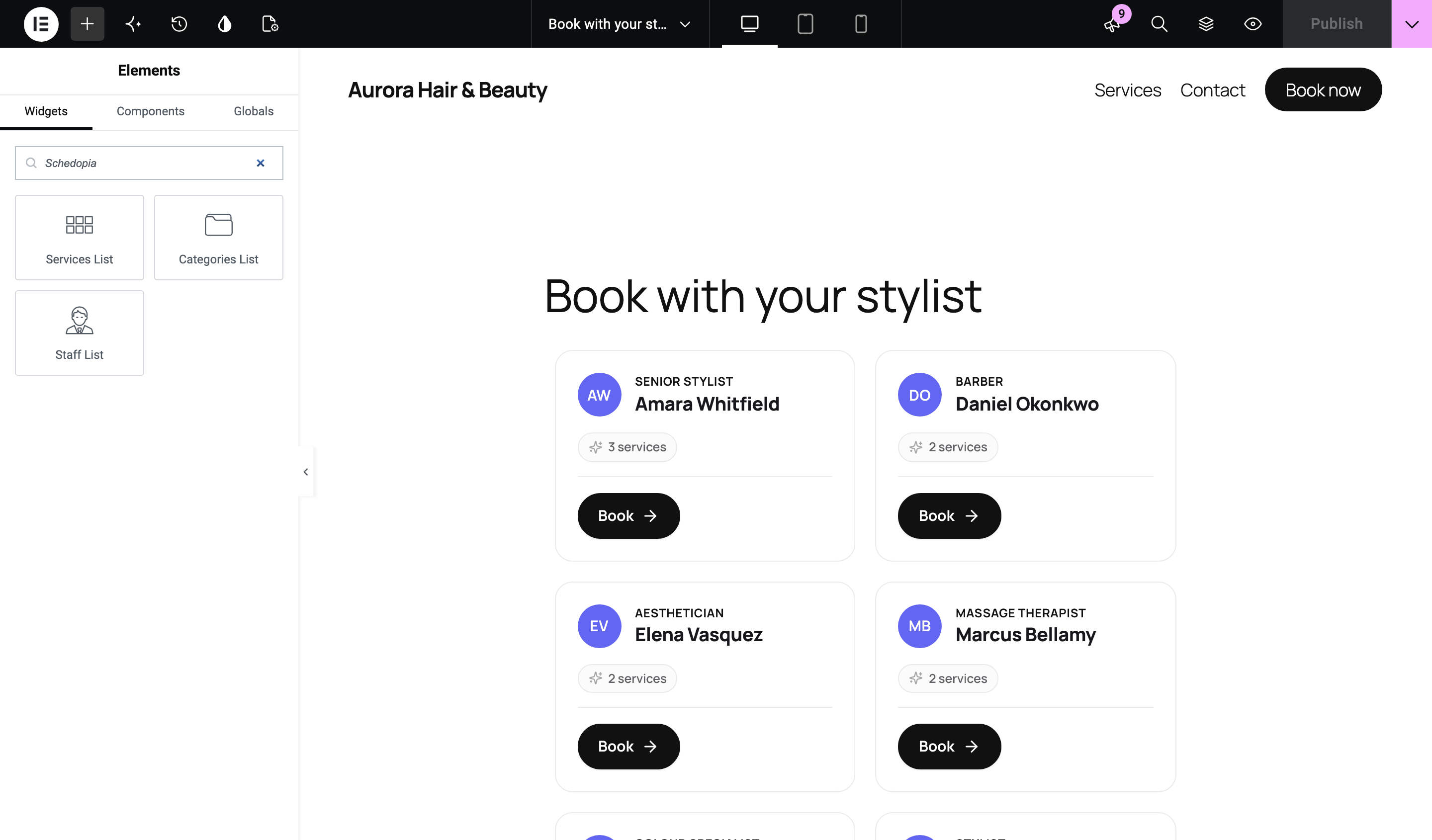
The preview in either editor is the real list, drawn by the same code as the shortcode and in your saved design, so the page you edit is the page customers get. A block or widget whose kind of booking is switched off leaves the inserter and the Elementor panel, which is why a salon running appointments only never sees Events List or Venues List.
A team page where each Book button opens that person’s services
Schedopia’s new Staff List shows your team as cards, each with a photo or initials, a job title, a description and how many services that person offers. Book on a card opens the booking form showing only that person’s services, and chooses them as the staff member once the customer picks a service.
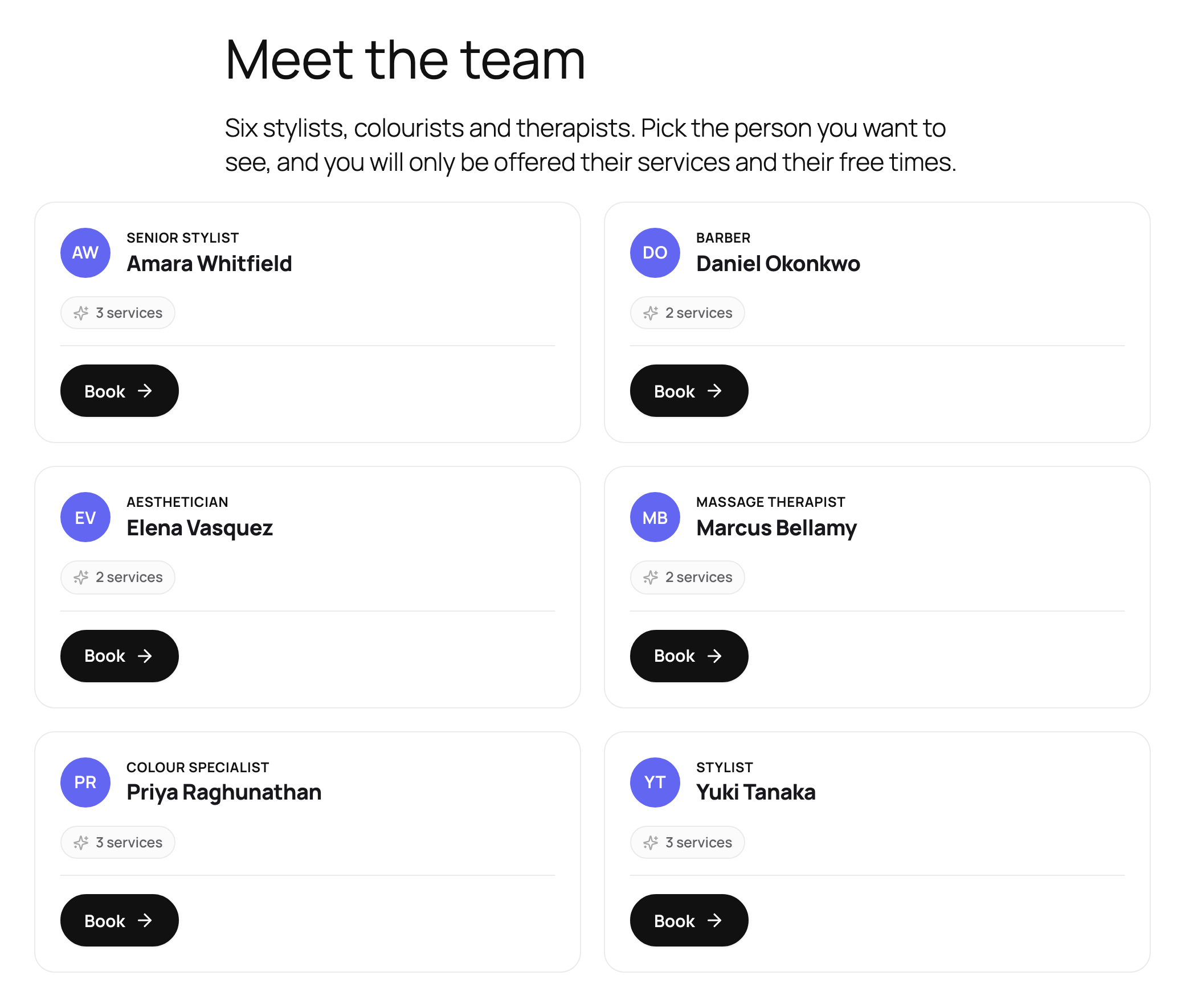
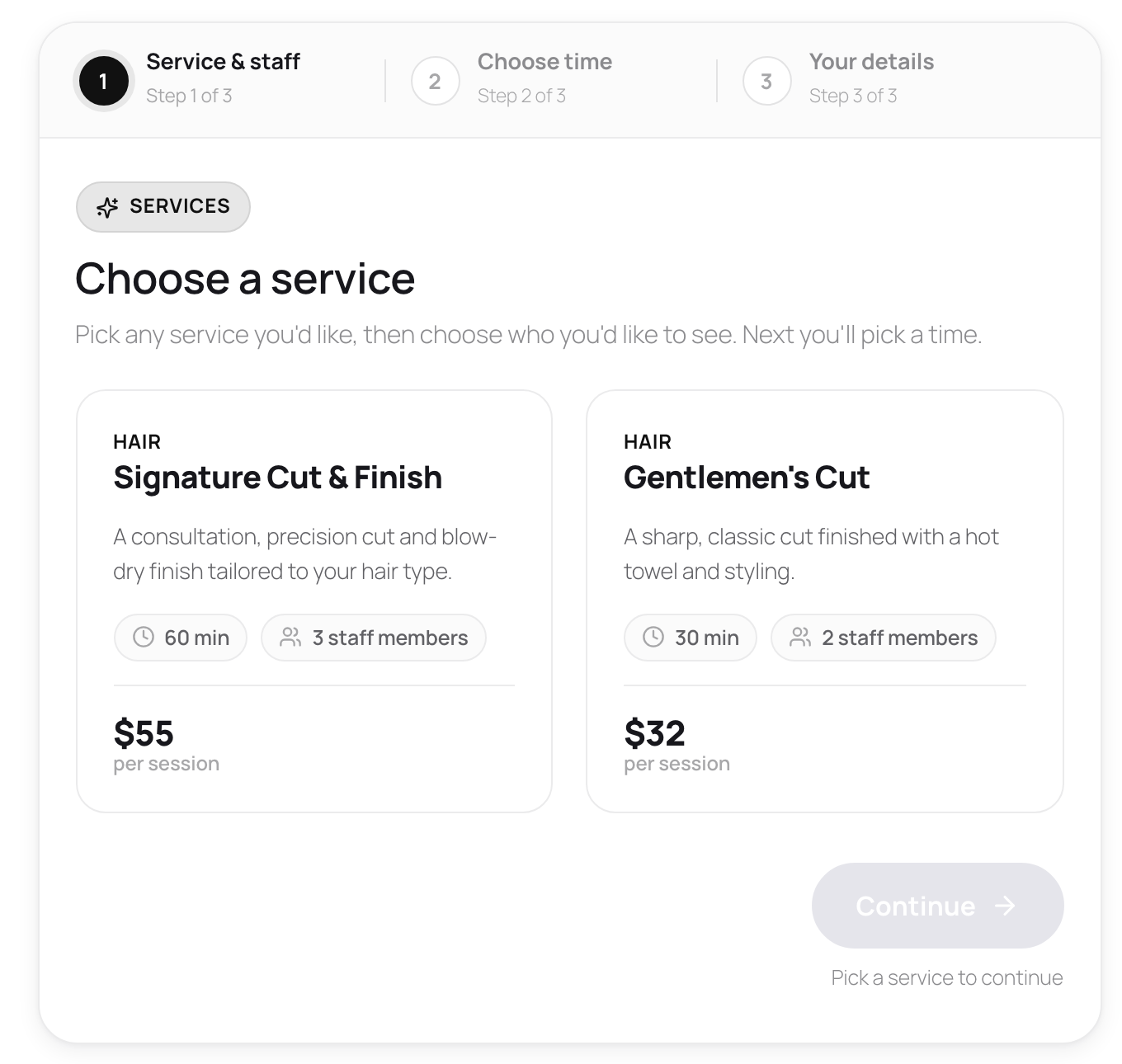
Two more lists work the same way:
- Categories List shows each service category with its description, how many services it holds and the starting price. Book opens the form on that category’s services only.
- Venues List shows each venue with its address, how many events are coming up and the next date. View events opens the seat booking flow with only that venue’s events.
Each list leaves out what can’t be booked: a category with no bookable service, a team member who offers nothing, a venue with no upcoming event. The lists are cards, not booking forms, so any of them can share a page with [schedopia_booking].
The three new lists also come as shortcodes, [schedopia_categories], [schedopia_staff] and [schedopia_venues], for the classic editor and other page builders. Settings → Shortcode lists every Schedopia shortcode with its options, ready to copy.
Limit a booking form to some services, a category or one person
The [schedopia_booking] shortcode takes five new options in 1.5.0, each deciding what one form offers:
| Option | The form offers |
|---|---|
services="haircut,facial" |
Exactly these services, in this order |
category="hair" |
The services in these categories |
staff="3" |
The services this team member offers, with them chosen for the customer |
events="opening-night" |
Exactly these events |
venue="main-hall" |
The events at these venues |
A page per department is now one line: a Colour page whose form offers only colour services, or a Studio page that sells only the events in one hall. A customer who arrives from a list card still gets what the card promised, even on a page with its own limit, because the click wins for that visit.
A limit that matches nothing, such as a misspelt category, gives an empty form with its “nothing to book” message rather than your whole menu, so open the page once after you publish it. The staff option takes each person’s number, not their name, which makes a Staff List card, already linked to the right person, the easier route to a form for one stylist.
Hand-pick what a services or events list shows
Schedopia’s services and events lists could already be narrowed to a category or a venue. Version 1.5.0 adds hand-picking: [schedopia_services services="haircut,facial"] shows exactly those services in the order you write them, and [schedopia_events events="summer-gala,jazz-night"] does the same for events. In a block or widget, choose These services or These events under Show and pick them by name.
That suits a home page that features your three most-booked treatments, or a Christmas page with only the December concerts.
Category slugs that survive a rename
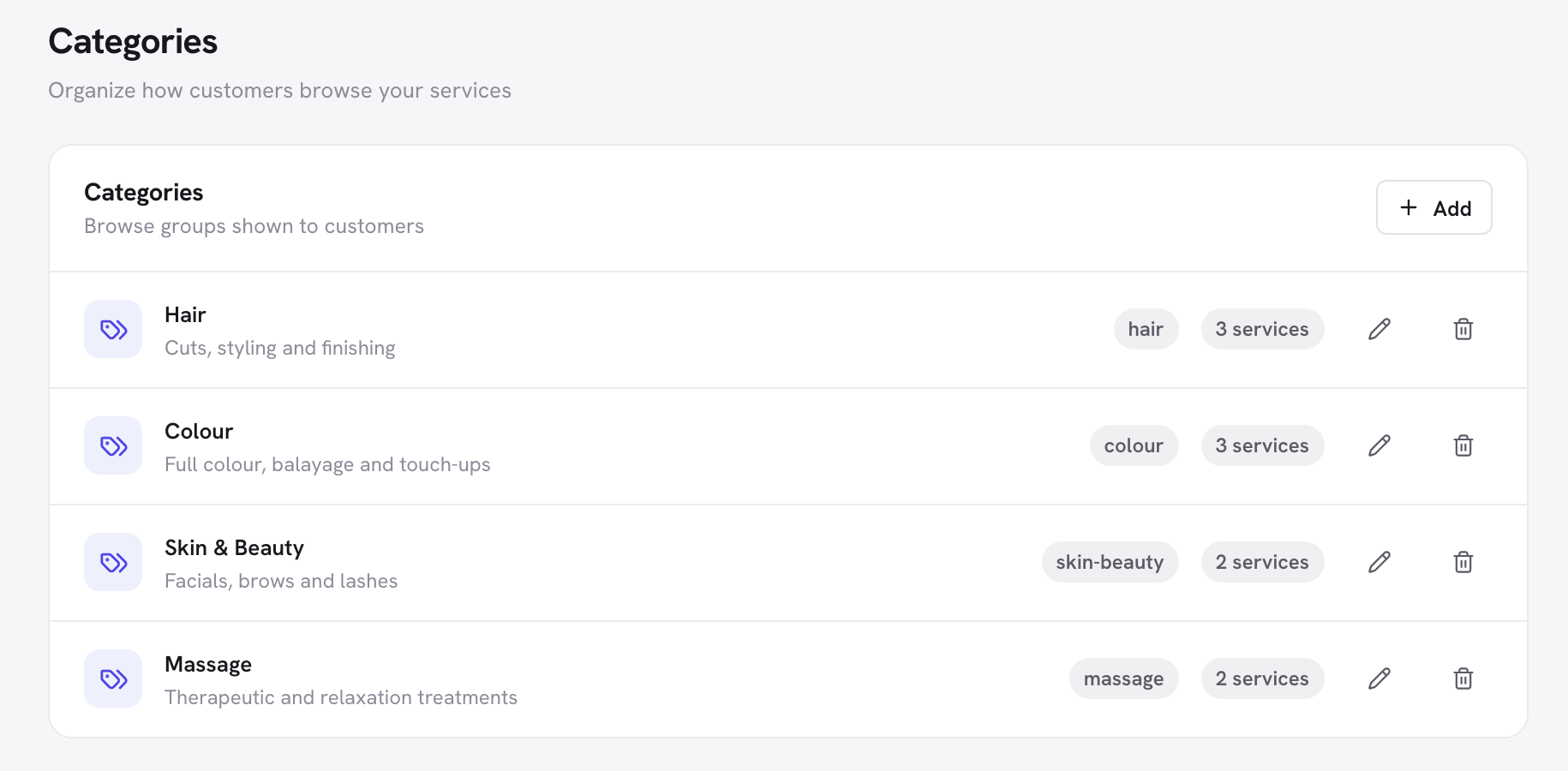
Schedopia’s Categories screen now shows each category’s slug, the short name that category="hair" and the lists use. Renaming a category no longer changes its slug, so Hair can become Hair and Styling without breaking a list already on a page. Before 1.5.0, a rename rebuilt the slug, and a list filtered by the old one quietly found nothing to show.
Fixed: clean-up time after an appointment could be booked over
Schedopia 1.5.0 fixes a bug where the next appointment could start inside the clean-up time of the one before it. Take a 60-minute Signature Cut with a 10-minute Buffer after, booked from 9:00 to 10:00 AM. With Slot interval set to 15 minutes, Schedopia still offered 10:00 AM to the next customer, and the 10 minutes for sweeping up were gone. The same could happen without a slot interval when one person does services of different lengths.
Each booking now keeps its own buffers, before and after, whichever was booked first. The fix covers both the times the form offers and the check Schedopia makes when a booking is created or moved. If you use clean-up time with a 15-minute slot interval, expect fewer start times straight after each appointment. That is the buffer doing what you set it to do.
The changelog lists all six changes in 1.5.0.
What 1.5.0 doesn’t change
The booking form itself still has no block or widget. Add it with [schedopia_booking] in a Shortcode block or Elementor’s Shortcode widget, as before, and only one booking form can appear on a page. If an earlier post of ours told you Schedopia has no blocks or Elementor widgets at all, this is the release that changed it for the lists.
Schedopia is still free and self-hosted, with no per-booking fees. There is still no online card payment (that is planned for Schedopia Pro), no SMS and no recurring bookings. For where lists and forms fit in a whole setup, the guide to creating a WordPress booking system walks through it from the first service.
Updating to Schedopia 1.5.0
Update from the Plugins screen as usual. Pages you’ve already built keep working: existing shortcodes keep their options and your category slugs stay as they are.
Then try the new lists on a page of their own. Create a page called Meet the team, add the Staff List block from the Schedopia group and publish it. Click Book on one card and check the form offers only that person’s services. For a form limited by shortcode, Settings → Shortcode has an example of each option to copy.
Frequently Asked Questions
Does Schedopia have Gutenberg blocks?
Yes, since version 1.5.0. Schedopia has five list blocks, Services List, Events List, Categories List, Staff List and Venues List, grouped under Schedopia in the block inserter. The booking form itself still goes in with the [schedopia_booking] shortcode in a Shortcode block.
Does Schedopia have Elementor widgets?
Yes, since version 1.5.0. The same five lists come as Elementor widgets in a Schedopia group in the widget panel, with the same settings as the blocks. The booking form itself still goes in with Elementor's Shortcode widget.
Can customers book a specific staff member from a team page in Schedopia?
Yes. The Staff List block, widget or [schedopia_staff] shortcode shows your team as cards, and Book on a card opens the booking form with only that person's services, choosing them as the staff member once the customer picks a service.
Can I limit a Schedopia booking form to some services?
Yes. Since 1.5.0, [schedopia_booking] takes services, category or staff to limit the appointments it offers, and events or venue to limit the events, for example [schedopia_booking category="colour"].
Will updating to Schedopia 1.5.0 change my existing pages?
Not the pages themselves. Existing shortcodes keep their options and category slugs stay as they are. If you use clean-up time with a short slot interval, the form may offer fewer start times straight after an appointment, because 1.5.0 fixes a bug that let that time be booked.
Is Schedopia 1.5.0 a free update?
Yes. Schedopia is free on WordPress.org with no per-booking fees, and 1.5.0 updates from the Plugins screen like any other release.