How to Add Buffer Time Between Appointments in WordPress
Appointment buffer time keeps prep and clean-up off the booking form. How to set it in WordPress, how much to add, and what each extra minute costs you.

A 60-minute cut ends at 10:00 AM, and the next client is already waiting for the chair. The floor needs sweeping and the bowl needs washing, so the 10:00 appointment starts at 10:08 and the day runs eight minutes late until close. That is what a booking form with no appointment buffer time does on a busy day.
The usual fixes are worse in quieter ways. Stretch the cut to 70 minutes and every customer reads “70 min” for a 60-minute service. Block the gaps by hand in the calendar and the job is never finished, because every new booking needs another block.
The turnaround belongs to you, not the customer, so it belongs in neither the service length nor your schedule. It belongs in a buffer: minutes the booking system holds free around each appointment and never offers to anyone. This guide sets one up in Schedopia, the free, self-hosted WordPress booking plugin we build, using version 1.5.1. How much to add, and what it costs you, holds for any plugin. For the wider picture, start with the complete guide to WordPress appointment booking.
What is appointment buffer time?
Appointment buffer time is time a booking system blocks before or after an appointment, for preparation or clean-up, without offering it to customers. A 45-minute facial with 10 minutes before and 15 after takes 70 minutes of the schedule, while the customer books and sees 45.
| Buffer | What it’s for | Examples |
|---|---|---|
| Before | Getting ready for this customer | Mixing color, warming a treatment room, reading notes |
| After | Resetting once they’ve gone | Sweeping up, changing linen, writing notes, taking payment |
Most businesses need the buffer after. Clean-up can’t start until the customer leaves, while most preparation can happen during the previous gap.
How much buffer time between appointments?
The right buffer is as long as a normal turnaround really takes, measured rather than guessed. Time the gap between customers for a week, use the typical figure as your business default, and give the few services that need longer their own buffer. In the demo salon we use for screenshots, a cut has 10 minutes after it, full-head color and massage have 15, and a gents’ cut has 5.
Then check what the buffer costs. Every buffer takes time you could have sold, and the cost comes in whole appointments, not minutes. Here is one stylist doing back-to-back 60-minute appointments on a 9:00 AM to 6:00 PM day:
| Buffer between appointments | Appointments in the day |
|---|---|
| None | 9 |
| 5 minutes | 8 |
| 10 minutes | 7 |
| 15 minutes | 7 |
| 20 minutes | 6 |
The jump from 10 to 15 minutes costs nothing on that day, because the seventh appointment fits either way. So if 10 minutes feels tight, 15 may be free. As a rule of thumb, divide the minutes you work by the service length plus the buffer, and round down.
Step 1: Set a business-wide buffer
A business-wide buffer applies to every service that doesn’t set its own, so most businesses only need this step.
- Go to Schedopia → Scheduling.
- In the Buffers & capacity card, choose Buffer after booking: None, or 5, 10, 15, 20, 30, 45 or 60 minutes.
- Choose Buffer before booking the same way, if the next customer needs preparation. Leave it on None if not.
- Click Save changes.
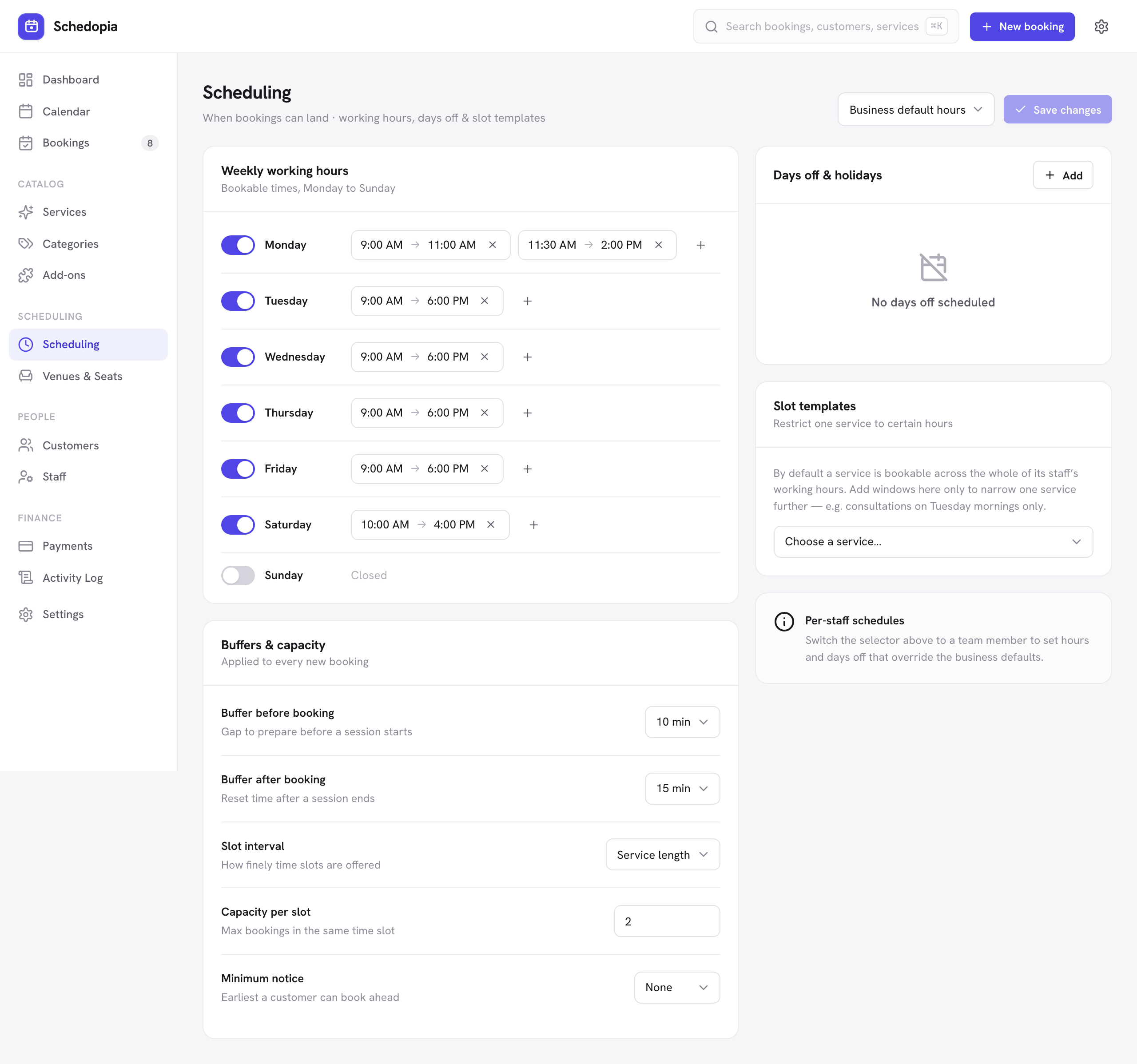
The new buffer shapes every time the form offers from then on. New booking in the admin works its times out the same way, so phone bookings follow the same rule.
Step 2: Give services that differ their own buffer
A service’s own buffer overrides the business default, one field at a time. Open Schedopia → Services, edit the service and use Buffer before (min) and Buffer after (min).
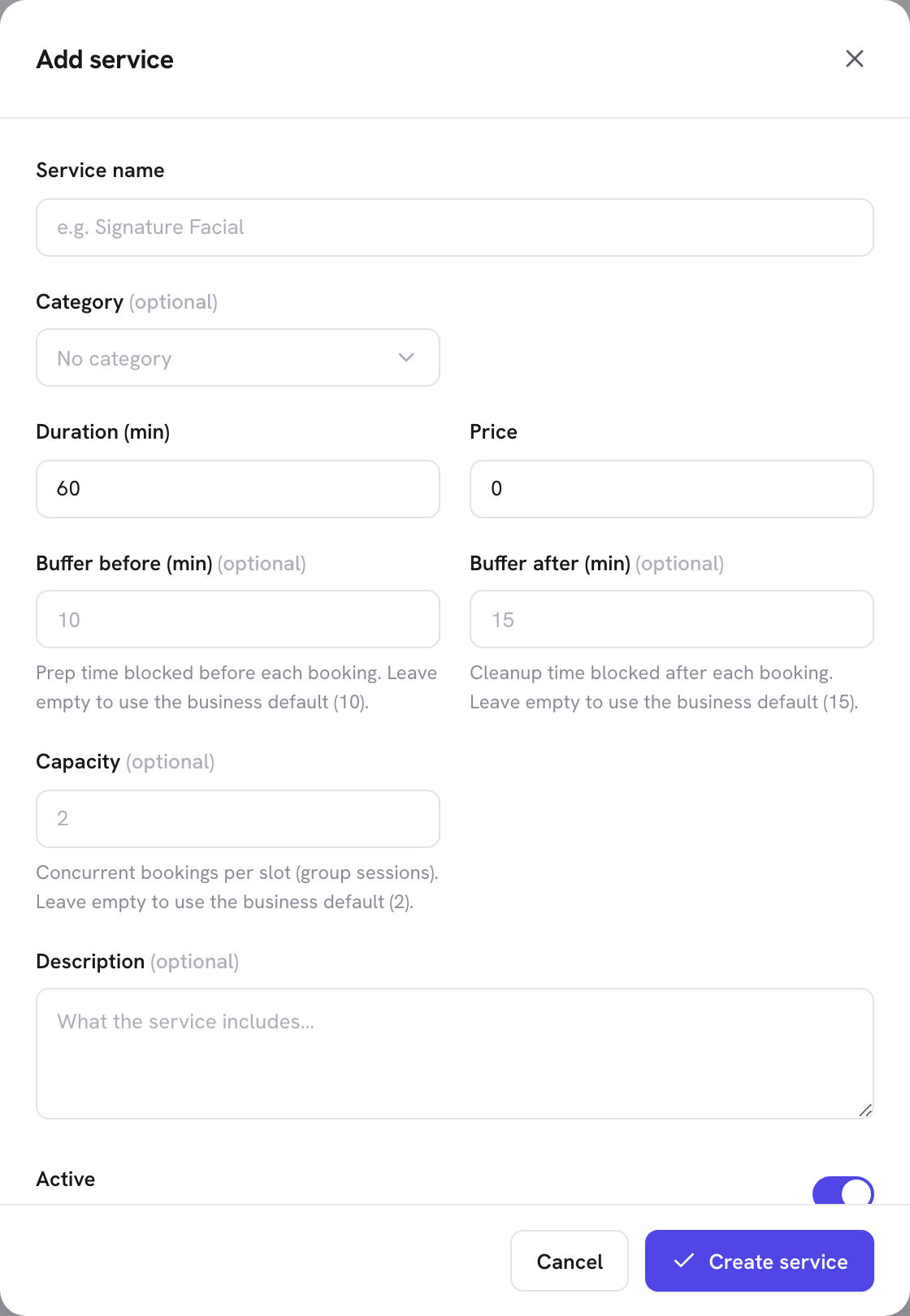
- Leave a field empty and the service follows the business default. The field shows which number it will inherit.
- Type a number and the service uses it instead. Unlike the business setting, this field takes any whole number of minutes, not just the listed ones.
- Type 0 for no buffer at all. Zero is not the same as empty: it wins over a business default of 15.
Add-ons stretch the appointment, and the buffers wrap the whole thing. A 60-minute cut with a 15-minute scalp treatment and a 10-minute buffer after holds 85 minutes. The services docs list every field.
Step 3: Check the first and last times of the day
Schedopia fits each buffer inside working hours, which changes the edges of your day.
A buffer before starts the day late. Open at 9:00 AM with a 10-minute buffer before, and the first appointment starts at 9:10.
A buffer after has to end by closing time. Close at 6:00 PM, and a 60-minute service with a 10-minute buffer after can’t start at 5:00, because its buffer would run to 6:10. If you’d rather keep that last slot, end the working day 10 minutes later in Scheduling, knowing a shorter service might then finish a few minutes after six.
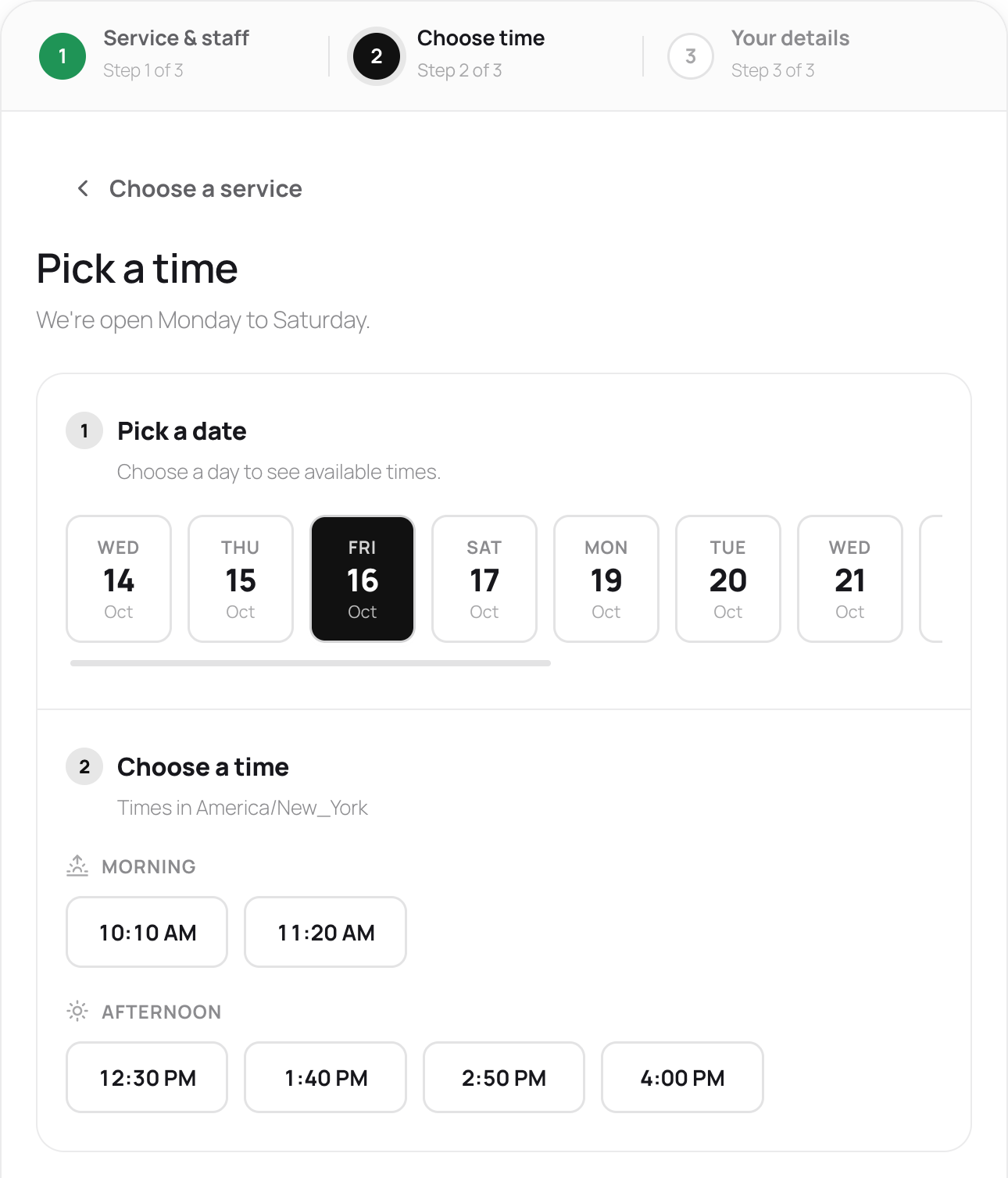
With Slot interval left on Service length, start times step forward by the appointment plus its buffers, so a 60-minute cut with 10 minutes after is offered at 9:00, 10:10 and 11:20 AM. Odd-looking times like 10:10 are the buffer working.
Step 4: Confirm the buffer works
A test booking shows the buffer doing its job in a couple of minutes.
- Open your booking page and book a service with one staff member at the first time offered on a quiet day.
- Open the form again and choose the same service, staff member and day.
- Check the next time offered. It should start at least one buffer after your test booking ends.
- Cancel the test booking from Schedopia → Bookings so the time is free again.
On Schedopia → Calendar, the test booking shows as 9:00 to 10:00. The calendar draws the appointment, not the buffer, so the 10 minutes after it look empty even though nobody can book them.
What appointment buffers won’t do
Buffers handle a fixed turnaround well, and some things sit outside them as of version 1.5.1.
- No buffer per staff member. Buffers belong to services and the business, so a slower junior stylist can’t have a longer turnaround on the same service.
- A buffer is a fixed number. It can’t be travel time that depends on where the next customer is, or a longer gap at busy times of day.
- Existing bookings stay put. A bigger buffer changes the times offered from then on. Appointments already booked closer together aren’t moved or flagged.
- Events don’t use buffers. Seats at a dated event are held seat by seat; buffers apply to appointments.
What to do next
Time your turnaround on your next five appointments with a phone stopwatch, and set the typical figure as the business buffer under Schedopia → Scheduling today. Then open your booking form and check where the first gap falls. If you’re still setting up the rest of the system, How to Create an Online Booking System in WordPress covers the other rules that shape every slot, and the scheduling docs have the details of each setting.
Frequently Asked Questions
What is appointment buffer time?
Appointment buffer time is time a booking system blocks before or after an appointment for preparation or clean-up, without offering it to customers. A 60-minute cut with a 10-minute buffer after it takes 70 minutes of the schedule, while the customer still books 60.
Do customers see buffer time?
No. Customers see the service length, such as 60 minutes, on the booking form and in their booking. The buffer only changes which start times the form offers.
Should buffer time go before or after an appointment?
After, for most businesses, because clean-up and notes happen once a customer leaves. Add a buffer before only for preparation that belongs to the next customer.
How much buffer time should I leave between appointments?
As much as a normal turnaround really takes, not the worst one. Time it over a week of appointments, use the typical figure as your default, and give the few slower services a longer buffer of their own.
Does buffer time reduce how many appointments I can take?
Yes. On a 9:00 AM to 6:00 PM day, back-to-back 60-minute appointments drop from nine to seven with a 10-minute buffer. A 15-minute buffer also leaves seven, so on that day the extra five minutes cost nothing.
Can different services have different buffer times in Schedopia?
Yes. Set a business-wide buffer under Scheduling, then type a different number in any service's Buffer before or Buffer after field. Leave a field empty to follow the business default, or type 0 for no buffer at all.
Can I give one staff member a longer buffer?
No, not as of Schedopia 1.5.1. Buffers belong to services and to the business as a whole, so everyone who performs a service gets the same buffer.
Does changing the buffer move bookings I already have?
No. A new buffer changes which times are offered from then on. Appointments already booked stay where they are, even if they sit closer together than the new buffer.