FreeSince v1.0.0
Services and categories
A service is the thing a customer books: a haircut, a consultation, a massage. It carries a price and a duration, and those two values drive both what the customer is charged and how much of your calendar the appointment takes.
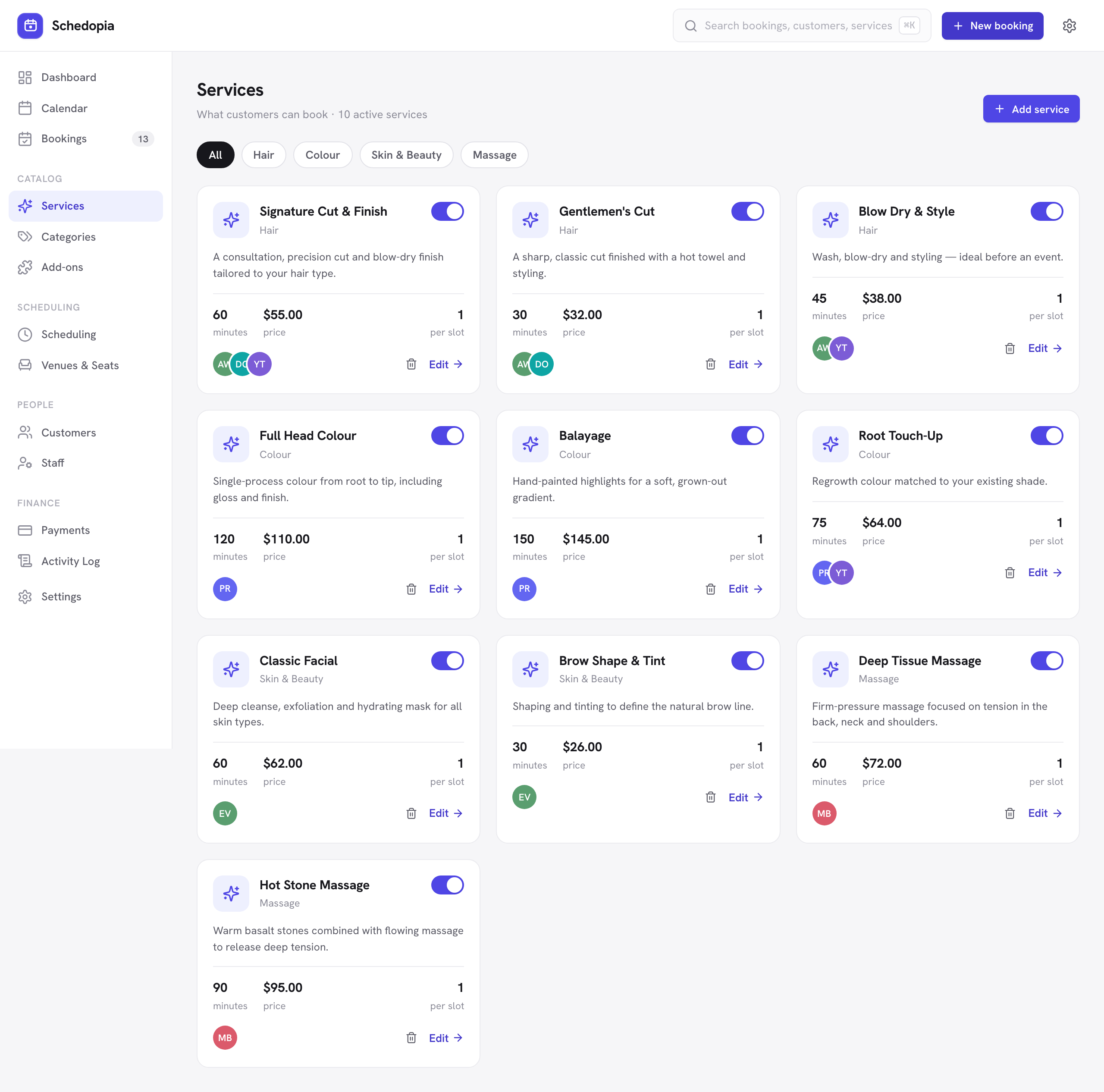
Creating a service
- Go to Schedopia → Services
and click Add service. - Fill in the details
— at minimum a name, a duration and a price. - Save.
Every current staff member is attached to the new service automatically (with no staff yet, you are added as the owner). The service appears on the booking form immediately, as long as it is active. - Narrow who performs it, if needed
Edit a staff member and uncheck the service under Services offered. See Staff.
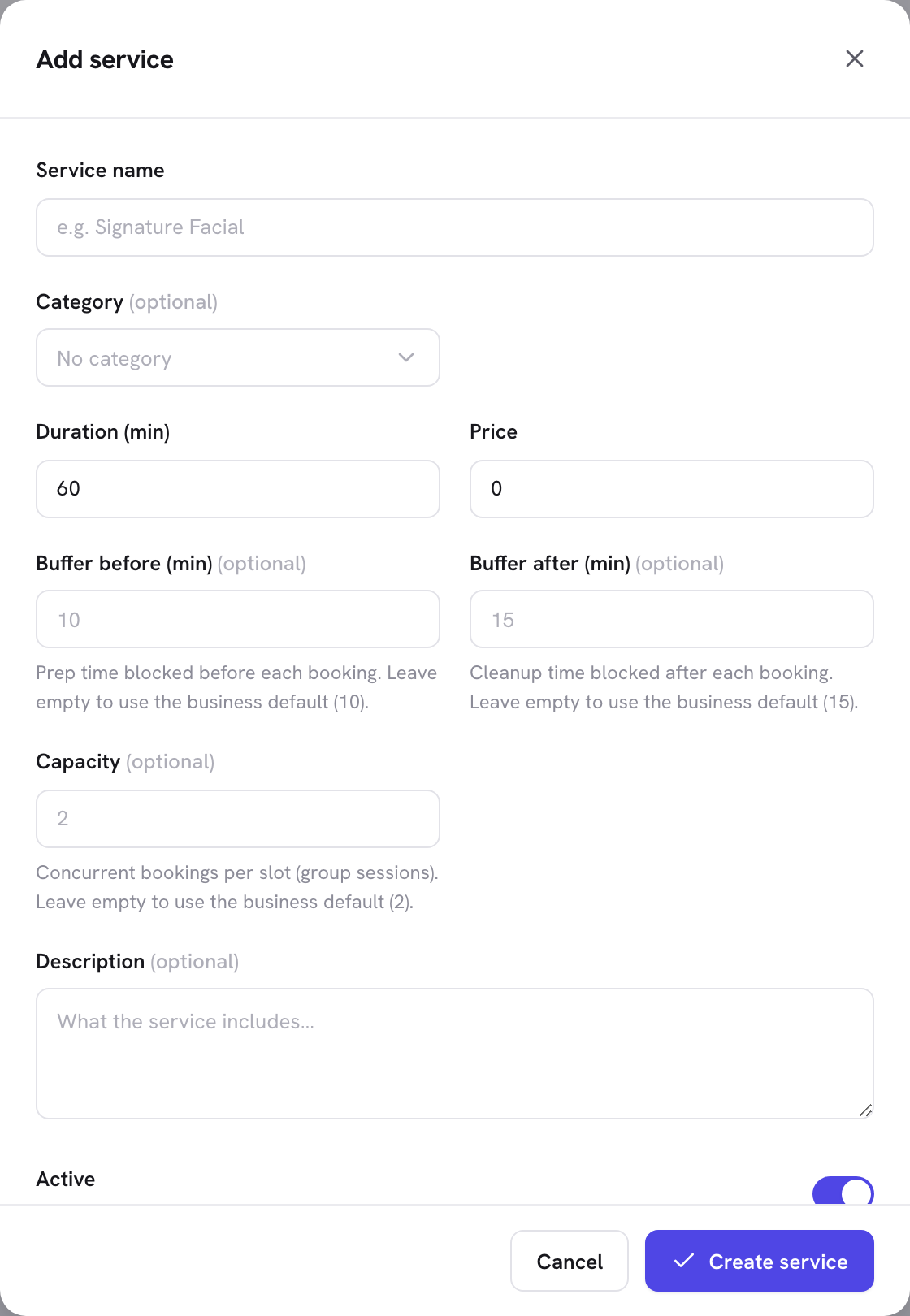
The fields
| Field | What it does |
|---|---|
| Name | Shown to customers on the booking form and everywhere in the admin. |
| Category | Optional. Groups the service, and gives the booking form its category filter chips. |
| Description | Optional. Shown on the service card in the booking form — a sentence or two works best. |
| Service cover | Optional. An image from your media library, shown on the service cards in the booking form and the services list. |
| Duration | How long the appointment takes, in minutes. This decides how much calendar time the booking occupies and which slots can fit it. |
| Price | In your configured currency. Used for the booking total and any payment you record against it. |
| Buffer before / after | Extra minutes blocked around the appointment for setup or clean-up. Invisible to the customer but respected when slots are generated. Leave empty and this service follows your business default — the field shows which number it will inherit. Type a value (including 0 for no buffer at all) and this service uses yours instead. See When both are set, the service wins. |
| Capacity | How many customers can hold the same slot at once. Leave it empty to follow the business default; set it for something like a class that seats more than the rest of your services. |
| Status | Inactive services stay in your catalog and on past bookings, but disappear from the booking form. |
A service with no staff assigned to it can never be booked — there is nobody whose availability could produce a slot. If a service is missing from the booking form, check its staff assignments first.
Categories
Categories group related services. They are optional, but if you have more than a handful of services they make the booking form much easier to scan: customers get filter chips across the top of the service step.
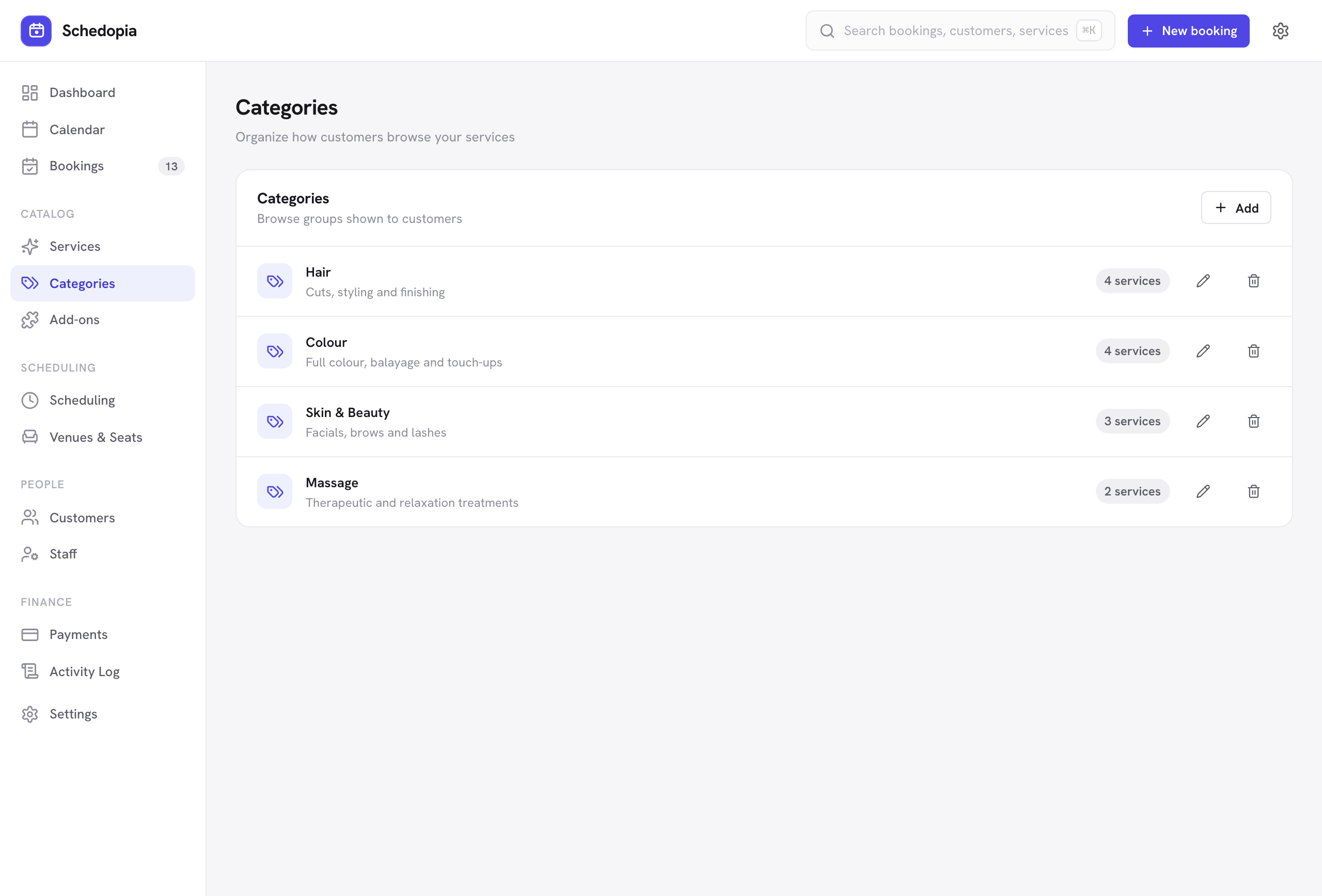
Create categories under Schedopia → Categories, then pick one when you create or edit a service. A service belongs to at most one category.
Changing prices later
Editing a service’s price or duration affects future bookings only. Bookings that already exist keep the total they were created with, so your history and any recorded payments stay consistent.
Pro will add per-staff pricing, so a senior stylist can charge more than a junior one for the same service. Pro is not on sale yet.
Next
Services can carry optional extras that customers choose while booking — see Service add-ons.