FreeSince v1.0.0
Email notifications
Schedopia emails customers and your team as bookings move through their lifecycle. Each email can be switched on or off independently, so you send exactly what your business needs and nothing more.
The emails
| Sent when | Goes to | Default | |
|---|---|---|---|
| Booking confirmation | A booking becomes confirmed | Customer | On |
| Pending-booking notice | A booking is made but still needs approval | Customer | On |
| Cancellation notice | A booking is canceled, by you or the customer. When you cancel, you can uncheck Email the customer | Customer | On |
| Admin new-booking alert | Any new booking arrives | The Sender email address | On |
| Also notify the booked staff member | Any new booking arrives | The staff member who was booked | Off |
| Reminder before appointment | A set number of hours before the appointment | Customer | On |
| Copy to the booker | A customer books, or cancels, for another person | The customer who made the booking | Always |
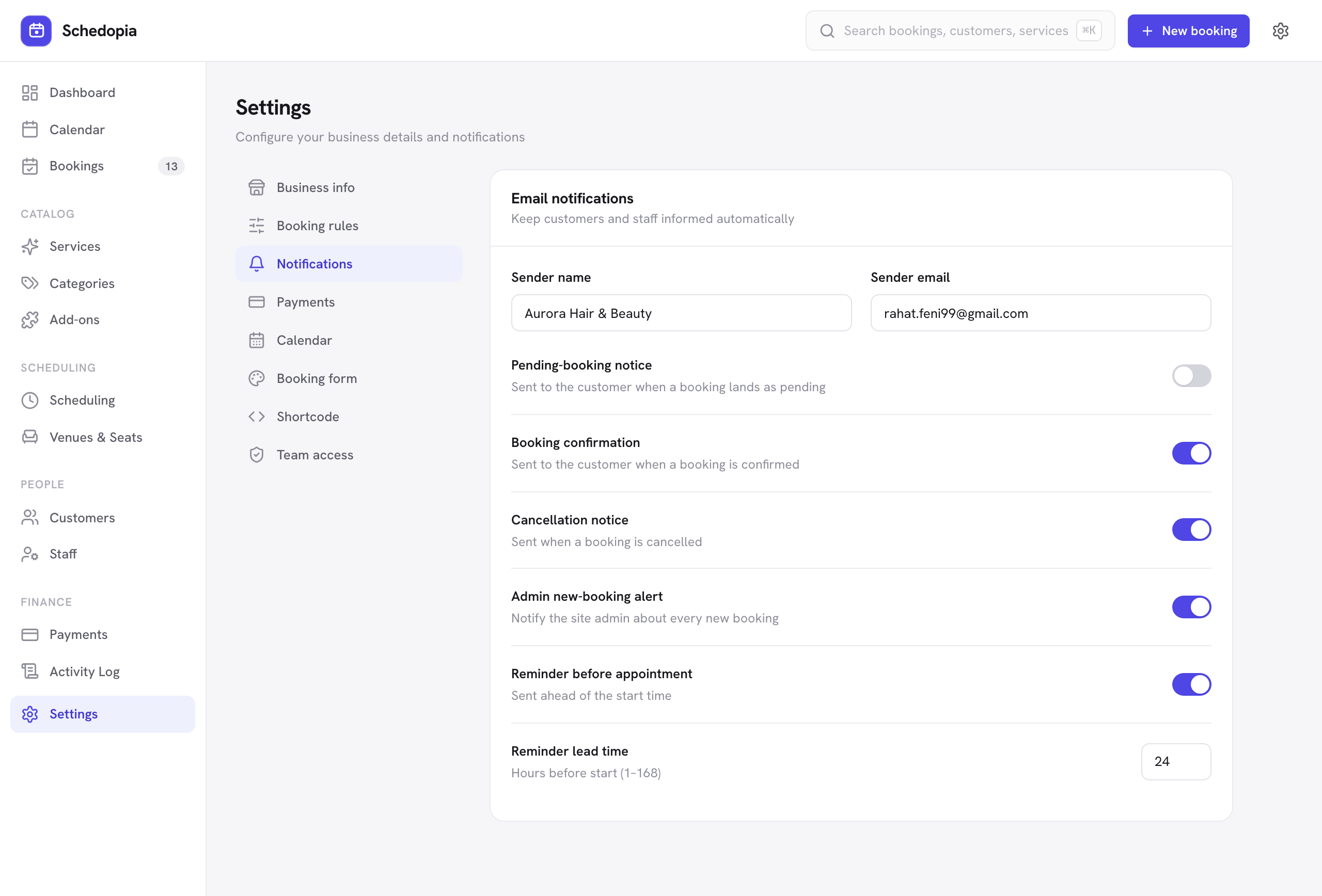
All but the copy to the booker are switched on or off under Settings → Notifications, where you can also rewrite each email’s subject and opening line and send a test email. Marking a booking completed or a no-show sends nothing.
Since 1.5.2, the admin new-booking alert says where the booking came from: your booking form, the admin, your connected AI assistant or the API.
With customer accounts on, Schedopia also sends account emails when they are needed: a link to set a password, a 6-digit code to confirm a new email address, and a password reset.
Who the emails come from
Set the sender name and sender email at the top of the notifications settings. Use an address on your own domain — messages sent from an address at a domain you do not control are far more likely to land in spam.
WordPress sends mail through your server by default, and many hosts are poor at it. If customers report missing emails, install any reputable SMTP plugin and point it at a real mail service. Schedopia uses the standard WordPress mail function, so it picks that up automatically with no configuration.
Reminders
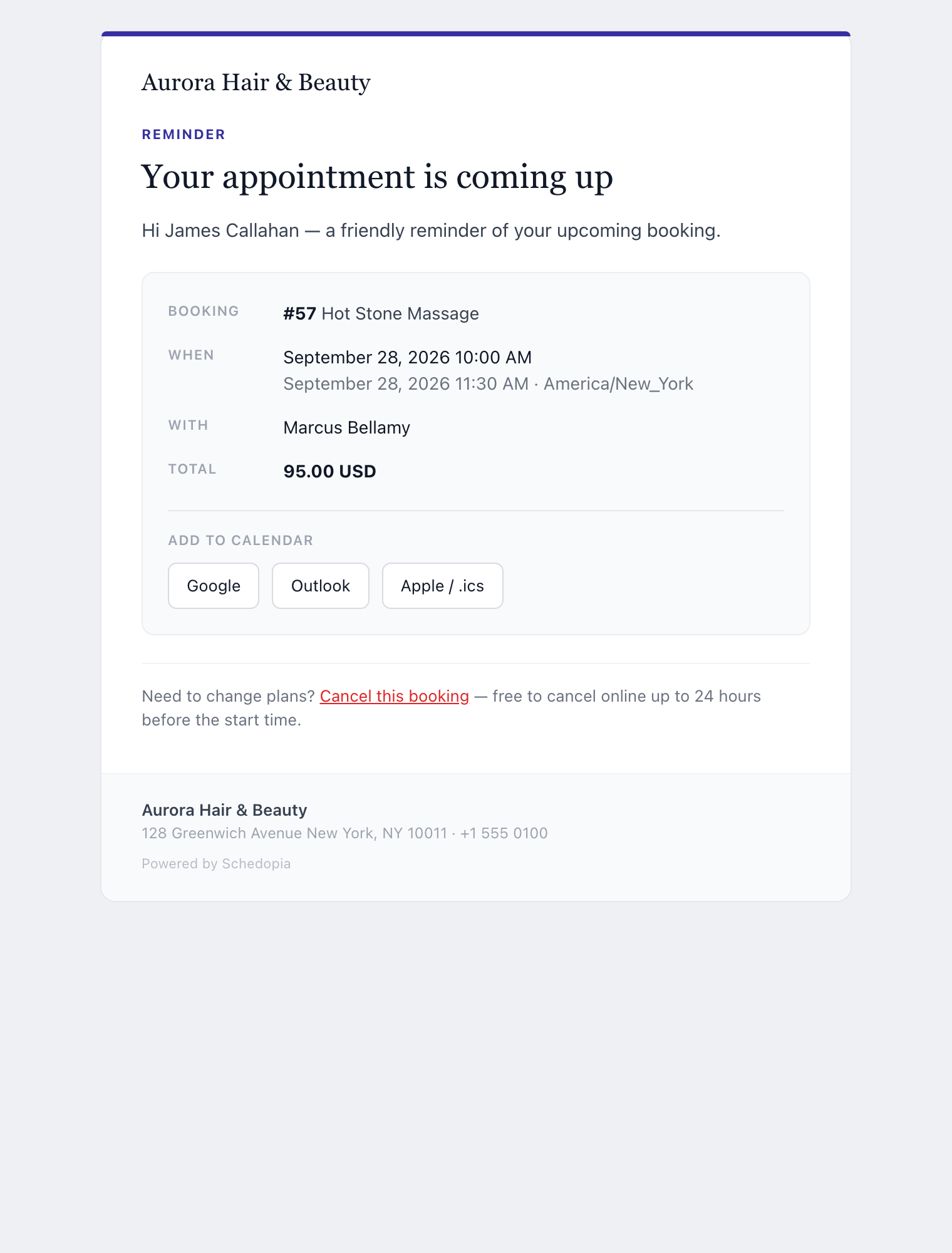
Reminders go out a set number of hours before the appointment starts — 24 by default, adjustable from 1 to 168 (a week). Schedopia checks hourly for appointments entering that window.
Each booking is reminded exactly once. Moving a booking, or the event it belongs to, re-arms the reminder for the new time, and canceling stops it.
Reminders rely on WordPress's scheduled-task system, which runs when your site receives traffic. On a very quiet site tasks can run late. If exact timing matters, ask your host about a real server cron job driving wp-cron.php.
What the emails contain
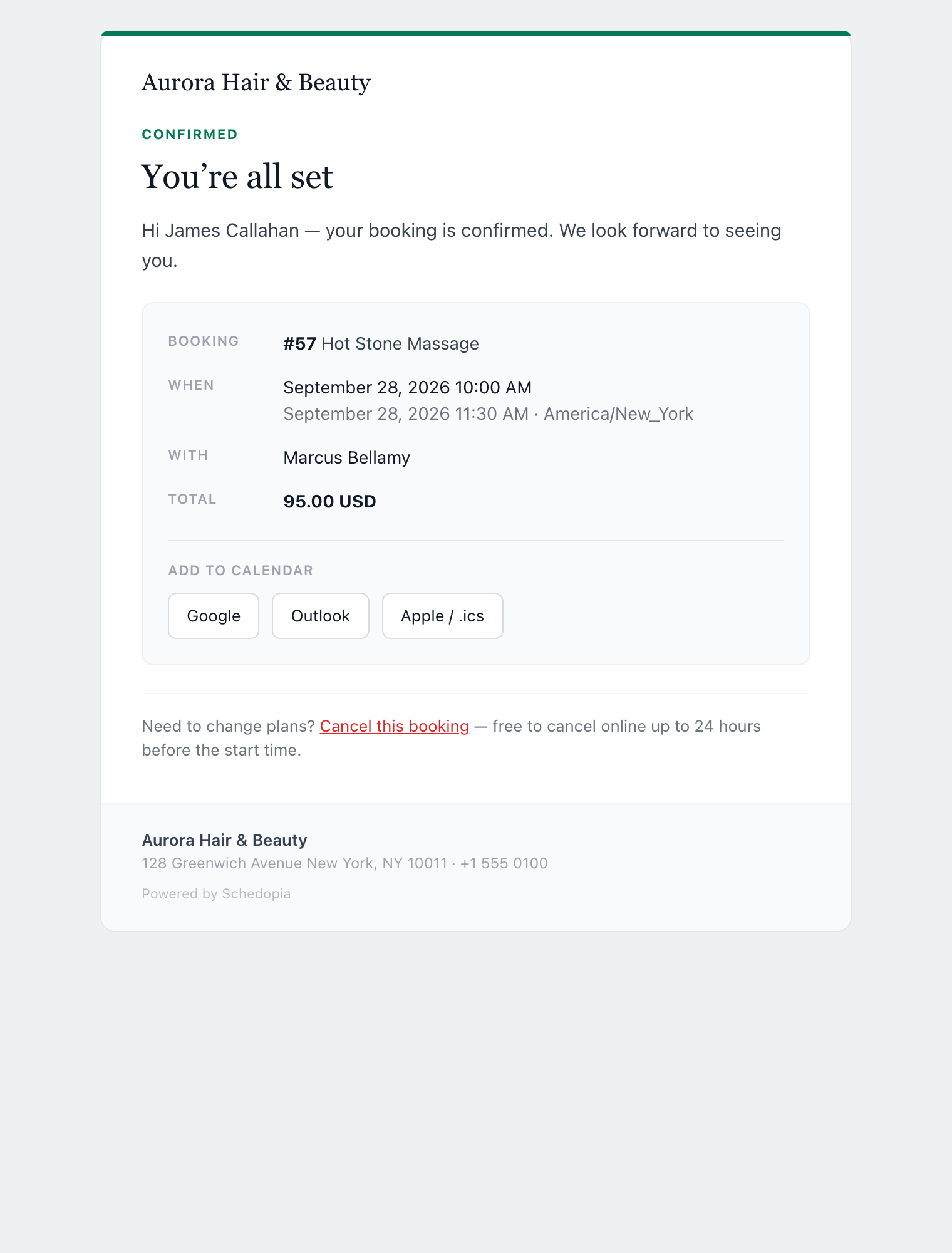
Every email leads with your business name, then a clear panel of the booking details — service and staff member for an appointment, the event name for a seat reservation, plus date, time and total. Confirmation and reminder emails also carry:
- Add-to-calendar buttons for Google, Outlook and Apple.
- A cancellation link, if you allow customers to cancel their own bookings.
The layout holds together on phones and in Outlook, and nothing is loaded from an external server — so the emails render identically with images switched off, which is how a good share of recipients read mail.
Pro will add WhatsApp as a notification channel alongside email, plus multilingual messages and automatic follow-ups for no-shows. Pro is not on sale yet.