FreeSince v1.2.0
Calendar feed and add-to-calendar
Two separate things: a private feed that puts your bookings into the calendar app you already live in, and buttons that let customers save their appointment to theirs.
The calendar feed
The feed is a read-only subscription. Point Google Calendar, Outlook or Apple Calendar at it and your Schedopia bookings appear alongside everything else in your schedule, refreshing on their own.
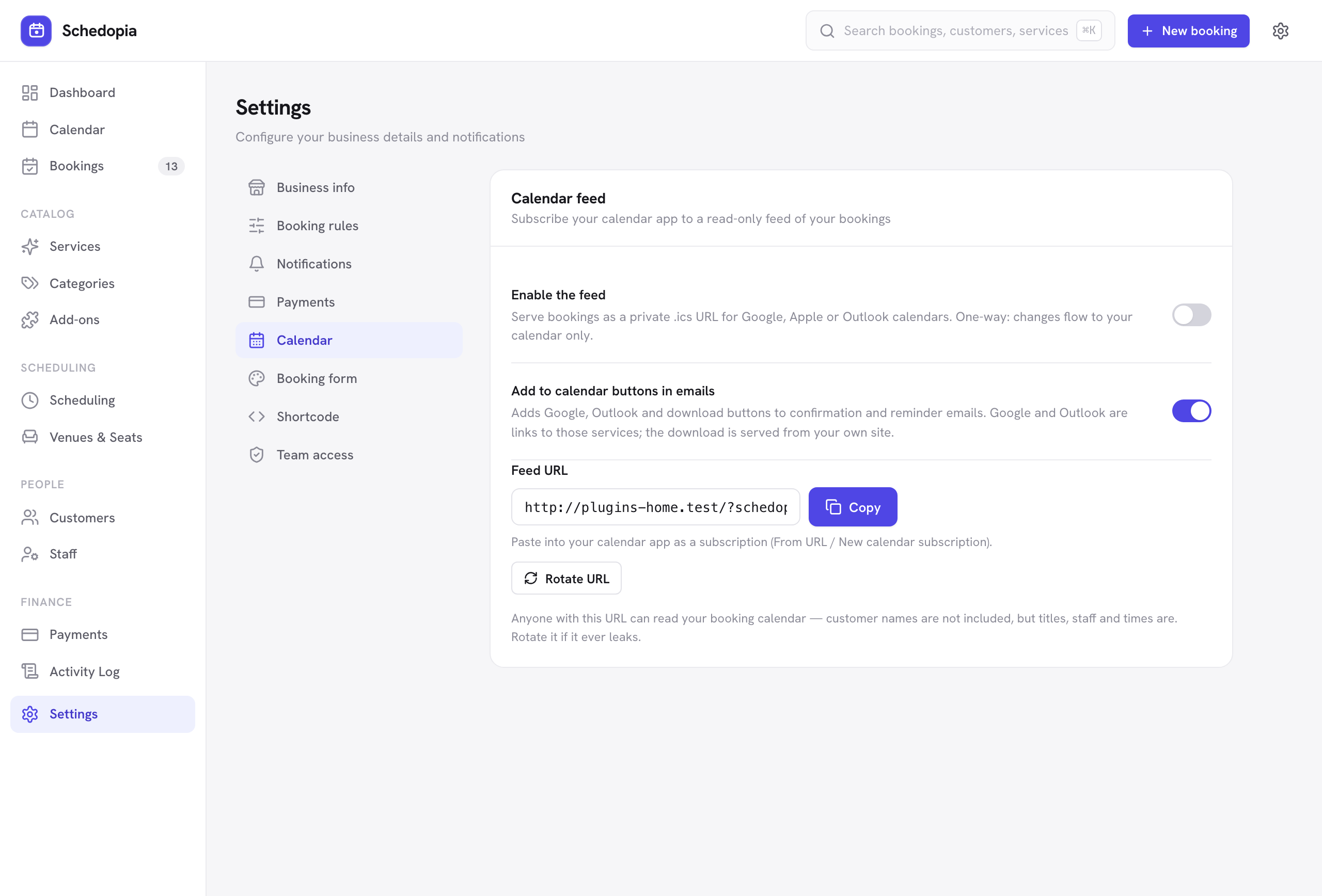
It is off by default. To use it:
- Go to Settings → Calendar
and turn the calendar feed on. - Copy the feed address
A long, unguessable URL unique to your site. - Subscribe in your calendar app
Look for “subscribe from URL,” “add by URL,” or “from internet” — the wording differs by app — and paste it in.
Anyone holding that URL can see your whole booking calendar: each booking's service or event, its reference, the staff member and the time. Customer names and contact details are not in the feed, but keep the address private all the same. Do not post it anywhere shared. If it does get out, use Rotate to issue a new address — the old one stops working immediately, and you re-subscribe with the new one.
It is one-way
The feed publishes Schedopia to your calendar. It does not read your calendar back, so an event you create in Google will not block a Schedopia slot. To keep time free, add a day off or adjust working hours in Scheduling.
Refresh timing
Calendar apps decide how often to re-check a subscribed feed, and most are conservative — Google in particular can take several hours. That is the app’s behavior, not a Schedopia setting. For an up-to-the-second view, use the Schedopia calendar.
Add-to-calendar buttons
Confirmation and reminder emails include Google, Outlook and Apple / .ics buttons, so a customer can save the appointment in one click. This makes them measurably more likely to turn up.
These are ordinary links. Nothing is sent anywhere unless the customer clicks one. The Google and Outlook links carry the appointment details in the link itself; Apple / .ics downloads a calendar file from your own site.
If you would rather not point customers at Google or Outlook, switch the buttons off under Settings → Calendar. The two features are independent: you can run the feed without the buttons, the buttons without the feed, or neither.
Pro will add two-way calendar sync — busy time in a staff member's own calendar automatically removes matching Schedopia slots. Pro is not on sale yet; the one-way feed described here is free.