FreeSince v1.4.0
What your assistant can do
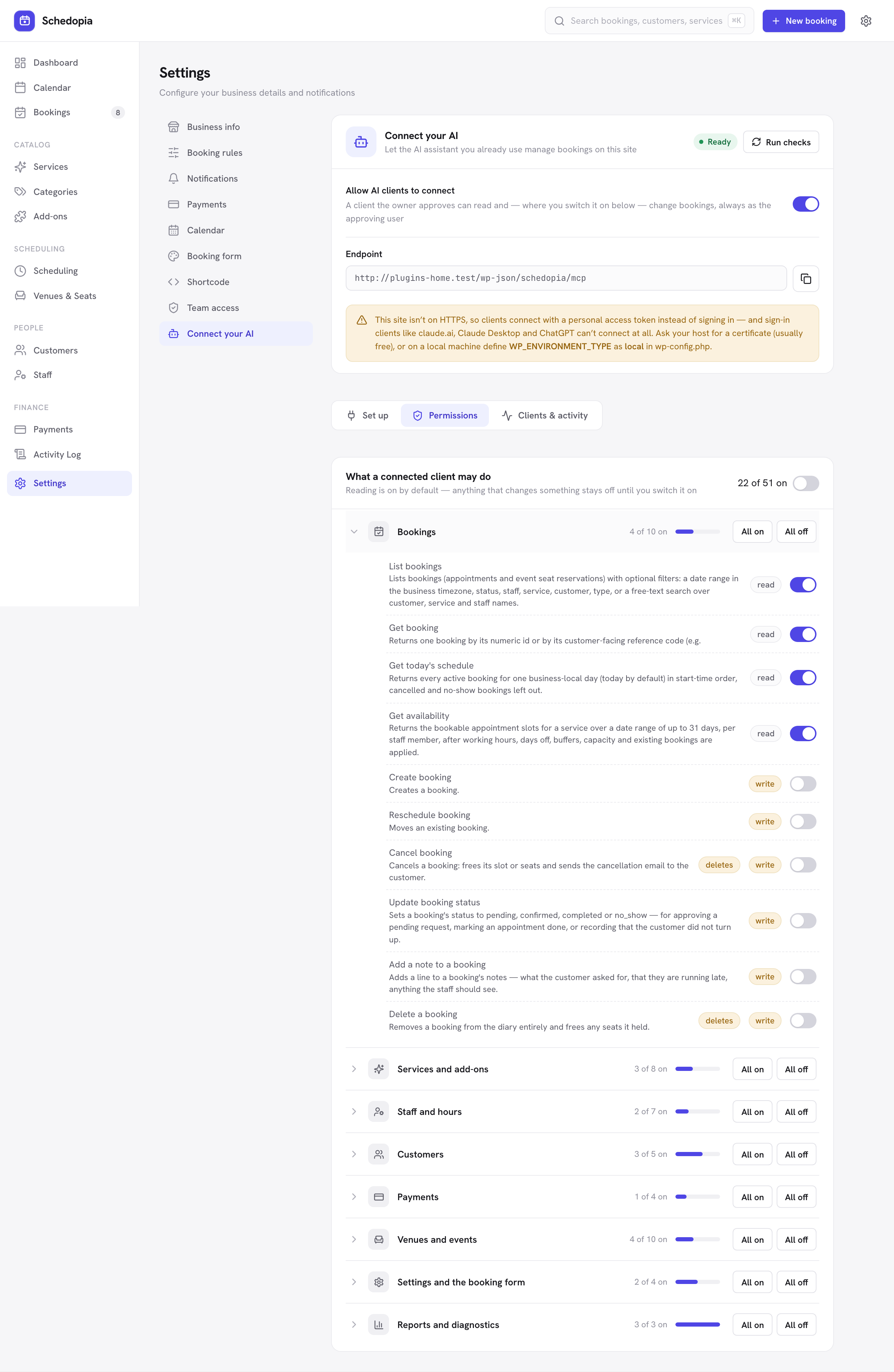
Fifty-one tools, each with its own switch. Reading is on from the start; anything that changes or deletes something stays off until you turn it on yourself.
Three things have to agree
Before a tool runs, three separate checks all have to pass. They are not alternatives — every one of them applies to every call.
- The tool is switched on
Your switch, on this page. A tool that is off is refused no matter who is asking. - Your account may do it
The assistant acts as the WordPress account that connected it, and is held to that account’s Schedopia permissions. Someone with the Schedopia Staff role cannot change prices through an assistant, because they cannot change prices in the admin either. - The credential allows it
A personal access token can be marked read-only, in which case every write is refused even when the switch is on and your account could do it.
Using the switches
Tools are grouped by area. Each group shows how many of its tools are on, and opens to reveal one row per tool with a one-line description and a switch. All on and All off at the right of the group header move the whole area at once, and the switch in the card’s own header — beside the running “N of 51 on” count — moves every tool on the page.
- A read tag means the tool only looks at something.
- A write tag means it changes something.
- A deletes tag means it can remove a record. These are worth reading one at a time before you switch them on.
Changes save as you make them, and take effect on the connected client’s next call — there is no need to reconnect it. A tool you switch off is refused immediately. A tool you switch on is announced to the client, which fetches the new list and can use it from then on. See what to do if it doesn’t.
Leave the reads on, switch on Bookings and Customers, and leave the rest off until you have a reason. That gives you a schedule you can talk to without exposing your catalog, your staff records or your settings.
The tools
An assistant sees each of these prefixed with the plugin — schedopia_list_bookings, schedopia_create_booking — so they never collide with another plugin’s. The description is what the tool does, not what it is allowed to do; that is your switch.
Bookings — 10 tools
| Tool | What it does | Kind |
|---|---|---|
list_bookings |
Find bookings by date, status, staff, service or customer. | read |
get_booking |
One booking in full — times, customer, add-ons, seats and payments. | read |
get_today_schedule |
Everything happening today, in order. | read |
get_availability |
The free start times for a service on a date. | read |
create_booking |
Takes a booking, through the same checks the booking form uses. | write |
reschedule_booking |
Moves a booking to another time or another staff member. | write |
update_booking_status |
Confirms, completes, or marks a no-show. | write |
add_booking_note |
Appends a note to a booking. | write |
cancel_booking |
Cancels it and frees the time or the seats. | deletes |
delete_booking |
Removes the record entirely. | deletes |
Services and add-ons — 8 tools
| Tool | What it does | Kind |
|---|---|---|
list_services |
Your services, or one in detail. | read |
list_service_categories |
The categories services are grouped under. | read |
list_addons |
Add-ons and the services they are attached to. | read |
save_service |
Creates a service, or changes one — duration, price, category, buffers, capacity, cover image. | write |
save_service_category |
Creates or renames a category. | write |
save_addon |
Creates or changes an add-on and what it is attached to. | write |
assign_service_staff |
Sets who performs a service, with an optional per-staff price. | write |
delete_catalog_item |
Deletes a service, a category or an add-on. | deletes |
Staff and hours — 7 tools
| Tool | What it does | Kind |
|---|---|---|
list_staff |
Your staff, or one in detail. | read |
get_business_hours |
The working week — the business default, or one person’s. | read |
save_staff |
Adds a staff member, or changes their details. | write |
set_working_hours |
Replaces a week of working hours and breaks, for one person or for the business. | write |
block_time |
Marks days as unavailable — holidays, closures. | write |
unblock_time |
Removes days that were blocked. | deletes |
delete_staff |
Removes a staff member, their hours and their service assignments. While they have upcoming bookings it refuses and lists them, until you say which to move to someone else and which to cancel. | deletes |
An assistant can create a staff member, but it cannot link that person to a WordPress account or give them a role. Anything that grants access to your site stays in the admin, in your hands.
Customers — 5 tools
| Tool | What it does | Kind |
|---|---|---|
find_customer |
Looks someone up by name, email or phone. | read |
list_customers |
Your customers, with booking counts and when they last came in. | read |
get_customer |
One customer with their recent booking history. | read |
save_customer |
Adds a customer, or corrects one. An existing email is updated, not duplicated. | write |
delete_customer |
Deletes a customer record. | deletes |
Payments — 4 tools
| Tool | What it does | Kind |
|---|---|---|
list_payments |
Payments by booking, status or date. | read |
record_payment |
Records a payment you took — cash, card in person, bank transfer. | write |
mark_payment_refunded |
Marks a recorded payment as refunded. | deletes |
delete_payment |
Removes a payment record. | deletes |
These tools write down payments you have already taken. No money moves, and no card or bank detail is ever sent anywhere.
Venues and events — 10 tools
| Tool | What it does | Kind |
|---|---|---|
list_venues |
Venues with their halls and seat tiers, as one tree. | read |
get_seat_layout |
A hall’s rows and seats. | read |
list_events |
Events, upcoming or past, with seats sold and free. | read |
list_event_seats |
Which seats are taken for one event. | read |
save_venue |
Creates or renames a venue. | write |
save_hall |
Creates or renames a hall inside a venue. | write |
save_seat_category |
Creates or changes a seat tier — name, price, color. | write |
save_event |
Creates or changes an event — title, times, halls, status. | write |
save_seat_layout |
Lays out a hall’s seats. Marked as deleting, because a new layout can remove seats. | deletes |
delete_venue_item |
Deletes a venue, hall, seat tier or event. | deletes |
A seat that somebody has already reserved cannot be laid out of existence — the tool refuses, exactly as the seat planner does.
Settings and the booking form — 4 tools
| Tool | What it does | Kind |
|---|---|---|
get_settings |
Your settings, grouped as the Settings screen groups them. | read |
update_settings |
Changes settings, one or many, with a per-setting result. | write |
get_form_appearance |
The booking form’s colors, corners, font and step labels — plus the values that are allowed. | read |
update_form_appearance |
Restyles the form and renames its steps. Returns what was actually applied. | write |
“Make the booking form dark green with rounded buttons, and call step two ‘Pick your stylist’” is one call to the last of these. Anything out of range is dropped rather than forced, and the tool reports what survived, so the assistant can tell you the truth about what changed.
Reports and diagnostics — 3 tools
| Tool | What it does | Kind |
|---|---|---|
get_dashboard_stats |
The headline numbers for a period — bookings, revenue, cancellations. | read |
query_activity_log |
Searches the activity log. Administrators only. | read |
how_to |
Explains how to set something up, and whether it is set up here. Never returns a key. | read |
Which permission each area needs
The assistant is held to the Schedopia permissions of the account that connected it. Administrators have all of them; the two Schedopia roles have a subset.
| Area | Permission | Schedopia Manager | Schedopia Staff |
|---|---|---|---|
| Bookings | Manage bookings | Yes | Yes |
| Customers | Manage customers | Yes | Yes |
| Reports | View reports | Yes | Yes |
| Services, add-ons, venues and events | Manage catalog | Yes | No |
| Staff and hours | Manage staff | Yes | No |
| Payments | Manage payments | Yes | No |
| Settings and the form’s design | Manage settings | Yes | No |
| The activity log | Administrator | No | No |
See Settings → Team access for how those roles are given out.
What an assistant can never do
Some things are not a switch you have left off — there is no tool for them at all.
- Widen its own access.
update_settingsrefuses to touch the Connect your AI switch or the tool switches. An assistant cannot turn on a tool you turned off, and cannot turn the whole feature on if you turned it off. - Arm data deletion or switch off the hourly limit. Since 1.5.2,
update_settingsalso refuses the Limit bookings per hour switch and the setting that would delete all of Schedopia’s data when you delete the plugin (off by default, with no switch in the admin).get_settingsshows whether each is on, nothing more. - Read a secret. Your reCAPTCHA keys and your calendar feed token are reported as “set” or “not set” and never by value.
how_totells you where to enter one; it does not tell the assistant what one is. - Manage credentials. There is no tool for tokens, for connected clients or for creating a connection. Those live on the Connect your AI tab and nowhere else.
- Grant WordPress access. No tool creates a user, assigns a role, or links a staff member to a login.
- Exceed your own account. Every call runs as the account that connected, with the same permissions it has in the admin.
- Bypass your business rules. A booking made by an assistant goes through the same path as one made on your form — the same availability checks, the same double-booking guard, the same emails.
Tools from other plugins
Another plugin can add its own tools to the same connection. When one does, its tools appear here under Added by other plugins, tagged with the plugin they came from, with the same switches and the same log. There is nothing for you to set up, and nothing appears that you have not switched on.