FreeSince v1.0.0
Managing bookings
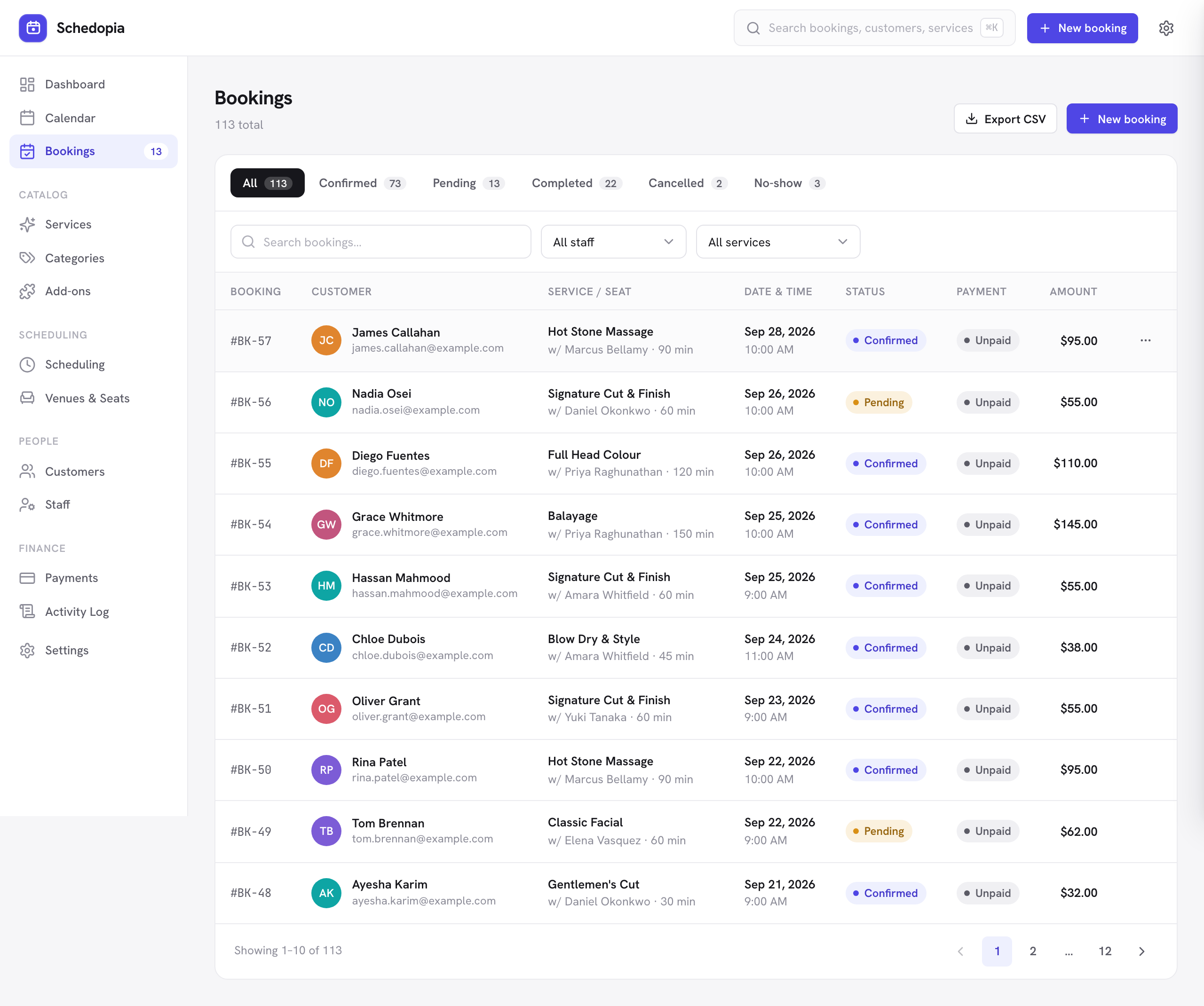
The bookings list is where you spend most of your time. Every appointment — whether a customer made it or you did — lands here as a real dated record with its own reference number.
Finding a booking
Three tools, and they combine:
- Status tabs across the top — All, Confirmed, Pending, Completed, Cancelled, No-show — each showing a live count.
- Search by customer name or email, service name, or staff name.
- Filters for a specific staff member or service.
Exporting your bookings
The Export CSV button above the list downloads your bookings as a spreadsheet, ready to open in Excel, Google Sheets or Numbers.
The export follows whatever you are already looking at. If you have picked the Completed tab, searched for a customer and filtered to one staff member, that is exactly what you get — no need to set the filters up twice.
The export covers the whole filtered set, not just the page on screen. Filter down to 400 bookings across 40 pages and all 400 rows are in the file.
Each row carries the booking’s reference and status, the service and staff member, the customer’s name, email, phone and address, the start and end times in the booking’s own timezone, how long it runs, the party size, the amount and currency, what has been paid and refunded, what is still owed, how it was paid, the payment status, where the booking came from, and when it was created and last changed. Anything the customer typed into the notes field on the form comes through too.
Seat reservations carry their own columns: the venue and hall, the seats that were booked by label, and how many. Appointments carry the service, the staff member and any add-ons. Rows come out in booking-id order — sort them however you like once they are in your spreadsheet.
Exporting needs the same permission as managing bookings, so anyone who can already open this screen can download the file. Bear in mind it contains customer contact details — treat it like any other file of personal data.
Booking statuses
Every booking is in exactly one of five states. Status drives what customers are emailed and whether the slot is held.
| Status | Meaning | Slot held? |
|---|---|---|
| Pending | Made but not yet confirmed — awaiting your approval. | Yes |
| Confirmed | Going ahead. The normal state for an upcoming appointment. | Yes |
| Completed | The appointment happened. Counts toward revenue and your completion rate. | Yes (it is in the past) |
| Cancelled | Called off, by you or by the customer. | No — the time is bookable again immediately |
| No-show | The customer did not turn up. | No |
The moment a booking is canceled or marked as a no-show, that time becomes available to other customers again. You never have to free it by hand.
The booking drawer
Click any row to slide out the full record.
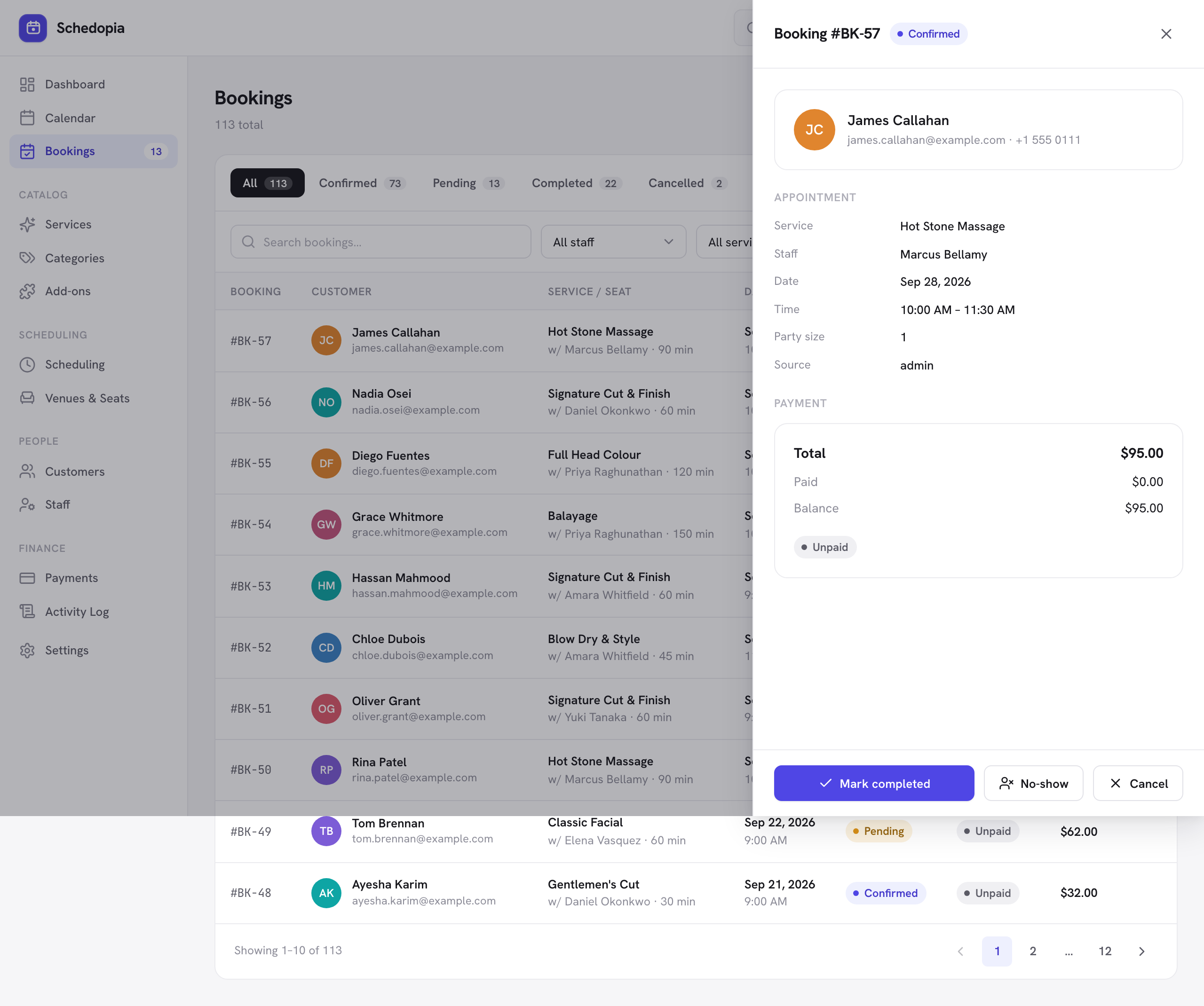
The drawer shows:
- The customer — name, email and phone, so you can get in touch without leaving the screen. If the customer has no account yet, Create account makes one for them. Administrators also get Move to another customer, for a booking made with the wrong email.
- Appointment — service, staff member, date, time, party size, and the source the booking came from (the public form, the admin, an AI assistant or the API).
- Booked by — on a booking someone made for another person, who made it, and whether that was a customer or your team.
- Add-ons — itemized, if the booking has any.
- Payment — total, how much has been paid, and the outstanding balance, with Record payment to add one.
The buttons along the bottom depend on the status. A pending booking has Confirm and Cancel booking. A confirmed one has Cancel, plus Mark completed and No-show once its start time has passed. A canceled or no-show booking can be reopened as pending with Reopen.
Confirming sends the customer the confirmation email, and canceling asks for an optional Reason and has an Email the customer checkbox for the cancellation email. Marking a booking completed or a no-show sends no email.
Creating a booking yourself
Phone and walk-in bookings go through New booking, at the top right of any screen.
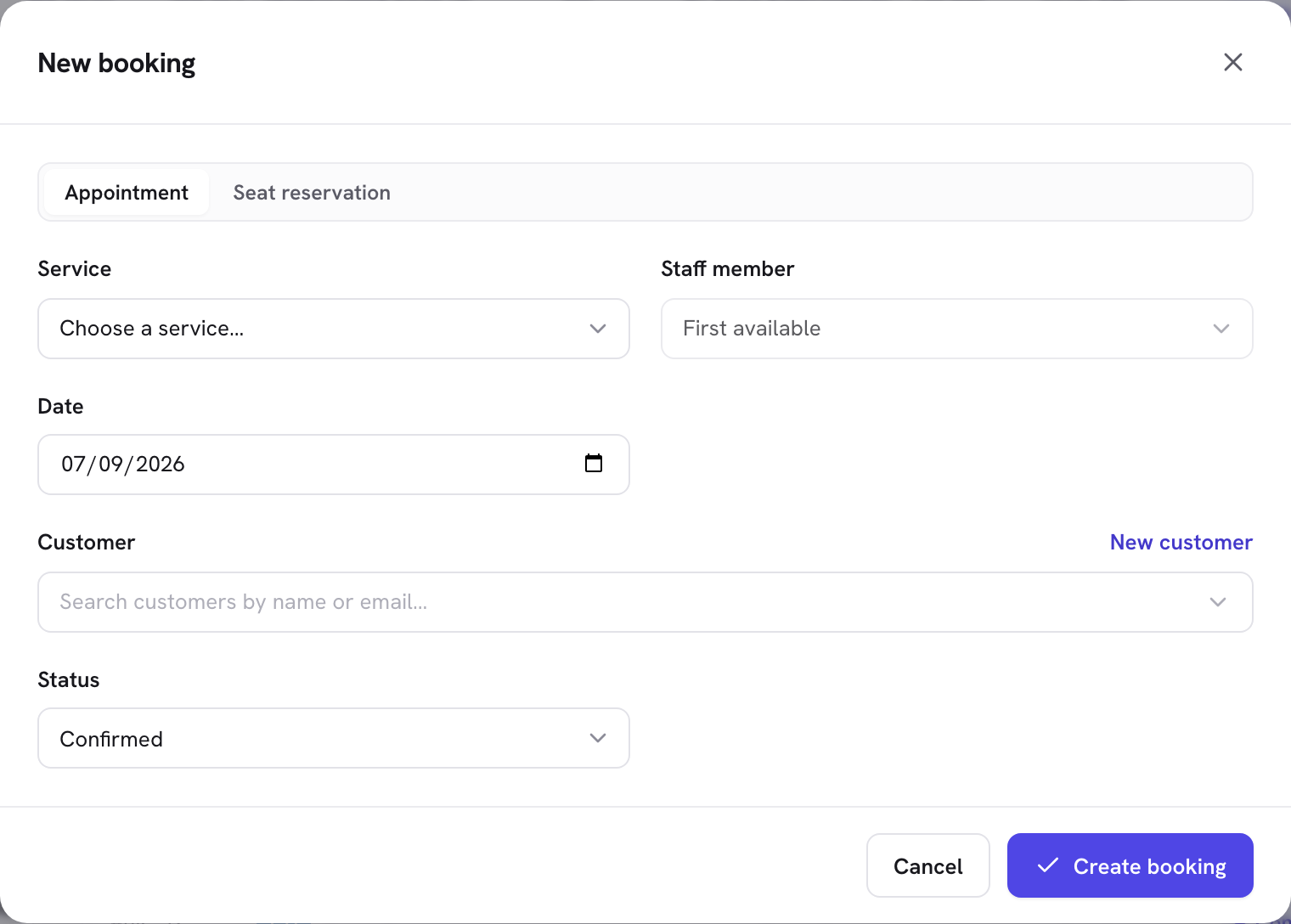
- Choose the service
Then a staff member, or leave it on First available to let Schedopia pick. - Pick the date and a free time
Only genuinely free slots are offered: the ones a customer would see, plus times inside your minimum notice, so a walk-in can still be booked. - Choose add-ons
If the service has any. The available times refresh to fit the longer appointment. - Find or create the customer
Search by name or email, or add a new one inline with New customer. - Set the starting status
Usually Confirmed for a booking you are taking over the phone.
Admin bookings go through the same double-booking guard as customer ones, so you cannot accidentally create an overlap from the admin. The minimum notice is the one rule that applies only to customers.
Seat reservations
If you run events, seat reservations sit in the same list as appointments. The Service / Seat column shows the event name and how many seats the booking holds, and the drawer opens as a Reservation — event, seats, date and total — instead of an appointment. Everything else works the same: statuses, payments, cancellation. To reserve seats for a customer yourself, switch New booking to its Seat reservation tab — see Booking seats.
Rescheduling
There is no way to move a booking to another time from the Schedopia admin in this release. Cancel it (uncheck Email the customer if you will tell them yourself) and create a new one with New booking.
A connected AI assistant can move a booking with its reschedule_booking tool, if you have switched that tool on. The new time is checked like a fresh booking and the reminder is re-armed, but the customer is not emailed about the move.
Where bookings come from
The Source field records how each booking was made: form for the public booking form, admin for one you created, mcp for one a connected AI assistant took, and api for one made through the REST API. It is useful for understanding how much of your business books itself.
Pro will add more sources — bookings made by chatting on WhatsApp or on your website — plus recurring bookings that create a whole series at once. Pro is not on sale yet.