FreeSince v1.0.0
Staff
Staff are the people who perform your services. Availability is worked out per staff member, so even a one-person business needs one staff record — otherwise there is nobody for a booking to attach to.
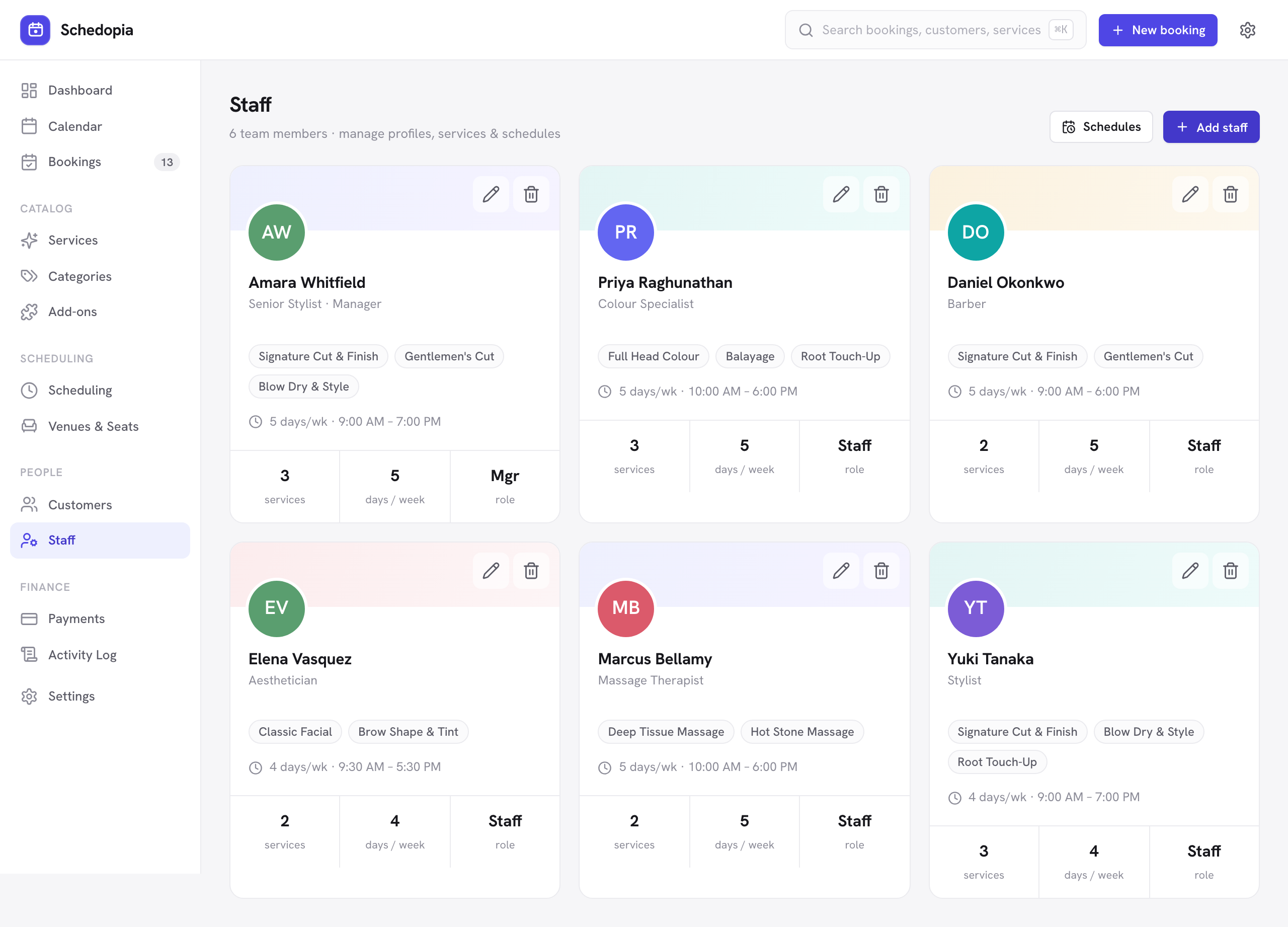
Adding a staff member
- Go to Schedopia → Staff
and click Add staff. - Enter their name and email
Their email receives new-booking alerts only if Also notify the booked staff member is on under Settings → Notifications. - Set a designation
Required, shown to customers next to their name when they choose who to see. - Check their services
Under Services offered, check every service this person performs. This is what makes them bookable. - Set their hours
New staff inherit your business default hours. To give them their own, go to Scheduling and switch the selector to their name.
Photos and initials
You can give a staff member a photo, which appears on the booking form when customers choose who to see. If you do not, Schedopia shows their initials in a colored circle — so the form looks deliberate either way.
Roles and access
Each staff member has a role that controls what they can do inside the WordPress admin:
| Role | Can do |
|---|---|
| Manager | Everything except WordPress administration: the catalog, bookings, customers, staff, payments, reports, Design and Settings. |
| Staff (own schedule) | Their own bookings and customers, and reports: enough to run their own day. Cannot change the catalog, other staff, or settings. |
The activity log stays restricted to WordPress administrators. There is a read-only summary of who can do what under Settings → Team access.
A staff record is not automatically a WordPress user. Creating a staff member lets you schedule and book them; giving them a login is a separate step, and only needed if they should sign in to the admin themselves. Save the staff member, then use WordPress login on their record to link an existing user or invite them by email.
When someone leaves
To remove a staff member, go to Schedopia → Staff and click the trash icon on their card. Before anything is removed, the dialog checks their upcoming bookings.
- No upcoming bookings. Click Remove. Their past bookings keep their name and their history.
- Upcoming bookings. The dialog lists each one with its date and time, service and customer. For each, pick Move to and another staff member who offers that service, or leave it on Cancel this booking. If any are left to cancel, the button reads Remove and cancel with the number of bookings.
Removing someone also takes away their services, working hours and days off, so they are never offered to customers again. If they had a WordPress login linked, that account loses its Schedopia role; the WordPress account itself stays. Their past bookings still show their name in the bookings list, where the staff filter marks them (removed).
A booking left on Cancel this booking is canceled the same way you would cancel it yourself, and the customer gets the cancellation email if Cancellation notice is on. A booking you move keeps its time, and the customer gets no email about the change of staff member, so tell them if it matters. If the person you move a booking to is already booked at that time, the staff member is not removed and nothing is canceled, and the dialog asks you to pick someone else for that booking.
If someone is only away for a while, don’t remove them: block their dates as days off instead.