FreeSince v1.0.0
Scheduling and availability
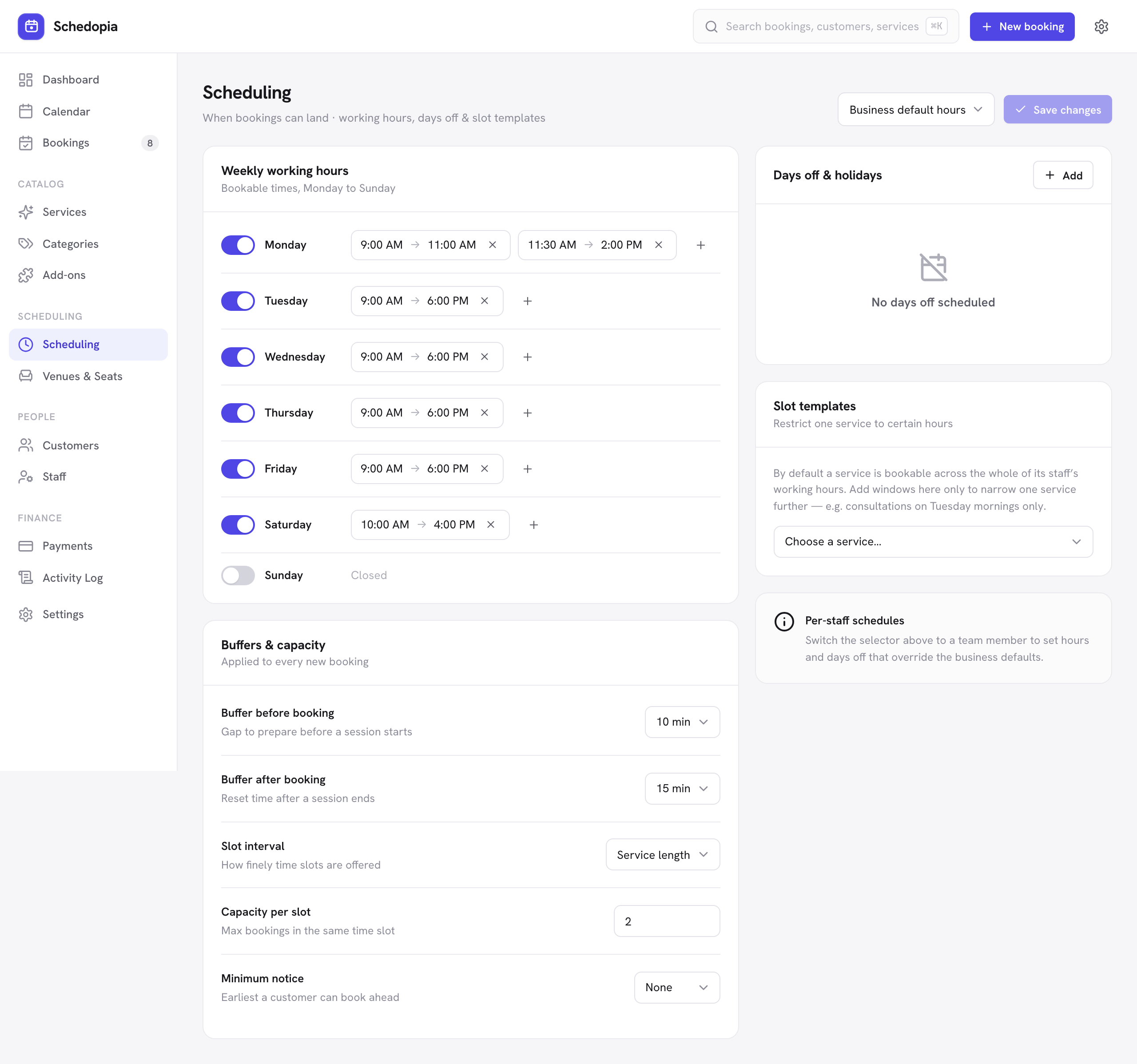
This is where you decide when bookings can land. Schedopia does not ask you to define time slots by hand — you describe when people work, and it works out every bookable slot from there.
How a slot is worked out
When a customer picks a service and a staff member, Schedopia takes that person’s working hours for the day and removes everything that would make a slot unbookable:
- Start with their working hours
Either the business defaults or their own override. - Remove days off
Business holidays and that person’s own time off. - Remove existing bookings
Including the buffers around them. - Keep only openings the appointment actually fits
The service duration, plus any add-ons the customer chose, plus its buffers. - Step forward by the slot interval
Back to back by default, or at a fixed step from 5 to 60 minutes if you set one. - Drop anything too soon
Nothing inside your minimum notice is offered.
What is left is offered to the customer, grouped into morning, afternoon and evening, for today and the next 14 days. The booking form accepts only these times: a request for any other time is refused.
Business hours vs per-staff hours
The selector at the top right of the screen switches between the two:
Business default hours
Your opening hours as a business. Every staff member follows these unless they have their own. Set a day to closed and nothing can be booked that day.
You can give a day more than one window — useful for a lunch break, by adding a morning window and an afternoon window rather than one long one.
Per-staff hours
Switch the selector to a person’s name to give them hours that override the business defaults entirely. This is how you handle part-time staff, someone who starts late on Thursdays, or a therapist who only works weekends.
Days off set here apply to that person alone — everyone else stays bookable.
Days off and holidays
A day off blocks whole dates: one day, or a range with From and To. There are no part-day blocks. Set one against the business to close everyone (a public holiday), or against one person for their leave. Existing bookings on that date are not canceled automatically — the day simply stops accepting new ones, so you can deal with what is already booked yourself.
Buffers and capacity
These five settings decide the shape of a bookable slot. Set them once for the whole business in the Buffers & capacity card on the Scheduling screen. Any single service can override its buffers and capacity; the slot interval and minimum notice apply to the whole business.
| Setting | What it does |
|---|---|
| Buffer before booking | Minutes held free ahead of the appointment — greeting the customer, setting up. |
| Buffer after booking | Minutes held free afterward — cleaning down, notes, turnaround. The most useful of the two. |
| Slot interval | How far apart offered start times are. Leave it on Service length and slots run back to back, so a 60-minute service starts on the hour. Set 15 minutes and the same service can start at 9:00, 9:15 or 9:30 — whichever a customer takes, the overlapping ones stop being offered. |
| Capacity per slot | How many customers may hold the same slot. 1 for one-to-one work; higher for a class or group session. |
| Minimum notice | How far ahead a customer must book. Nothing starting inside the window is offered, and the booking form refuses it. Bookings you make in the dashboard are not restricted: the New booking dialog also offers times inside the notice, so a walk-in ten minutes from now is still your call. |
When both are set, the service wins
Buffers and capacity appear in two places, and the rule between them is simple: a service overrides the business default, one setting at a time.
In the service editor, leave Buffer before, Buffer after or Capacity empty and that service follows the business default — the field shows you which number it will inherit. Type a value and that service uses yours instead. Each of the three is decided on its own, so a yoga class can take its capacity from the service (say 8 places) while still using the business buffers.
Empty means “no opinion, use the business default.” 0 means “no buffer at all for this service” — and it wins over a business default of 10. If you want one treatment to run with no prep time while everything else keeps a gap, type 0 rather than clearing the field.
A worked example. The business is set to 10 minutes before, 15 after, capacity 2:
| Service | What you typed | What it uses |
|---|---|---|
| Facial | all three left empty | 10 before · 15 after · capacity 2 — all inherited |
| Deep tissue massage | 0 before, 30 after, capacity 1 | 0 before · 30 after · capacity 1 — all its own |
| Group yoga class | capacity 8, buffers left empty | 10 before · 15 after · capacity 8 — buffers inherited, capacity its own |
Slot interval and minimum notice are business-wide only — there is no per-service override for those two.
Buffers are invisible to customers. They never see “60 minutes + 15 minutes” — they just stop being offered a time that would leave you no turnaround.
Slot templates
By default, slots follow directly from working hours. A slot template adds an optional extra constraint for a single service: weekly windows during which that service may be booked at all.
Use it when a service is only offered at certain times — color appointments on Tuesdays and Thursdays, say — even though the stylist works all week. The template narrows the staff member’s hours; it never widens them.
If every service can be booked whenever the staff member is working, leave slot templates alone.
Timezones
Every booking stores its own start time, end time and timezone. Your WordPress site timezone, the same setting as Settings → General in WordPress and also shown under Settings → Business info, is what the admin displays and what customers see on the booking form.
Changing your site timezone later does not move existing appointments — they keep the real moment in time they were booked for. Getting it right up front avoids a confusing calendar.
Nothing is available — what to check
- Does the service have at least one staff member assigned? (Services)
- Does that staff member have working hours on the day you are testing?
- Is the day marked as a day off, for the business or for them?
- Is the service long enough, with buffers, that it no longer fits the working window?
- Is the service active?
Pro will add two-way calendar sync, so time blocked in a staff member's Google or Outlook calendar automatically removes matching slots here. Pro is not on sale yet. Today, one-way calendar subscription is free.