FreeSince v1.4.0
Watching and troubleshooting
Who is connected, what they have done, how to cut one off, and what to check when a client will not connect at all.
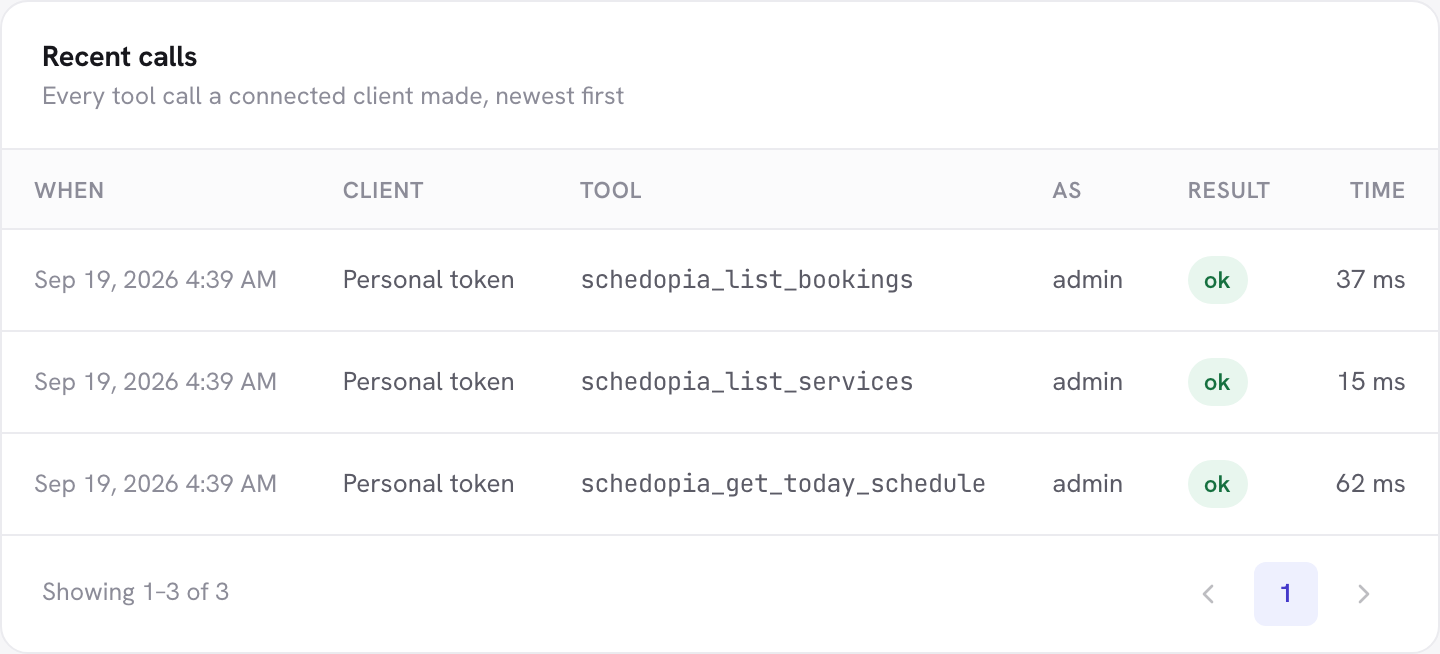
Recent calls
Every tool call a connected client makes is listed here, newest first: when it happened, which client made it, which tool it used, whose account it ran as, whether it worked, and how long it took. A failure shows the reason rather than a blank.
The same entries are in the activity log under mcp.call, alongside everything else that happens on the site — so a booking an assistant made sits in the same history as one you made yourself.
What is written down, and what is not
The log records what was asked for, not who it was about. Before an entry is written, anything personal in the request is replaced with *** — names, email addresses, phone numbers, addresses, notes, cancellation reasons and search terms. Anything whose name reads like a credential is masked too, even if it was refused.
So an entry tells you “this client created a booking at 14:02 and it worked,” and the booking itself tells you who for. Long values are shortened. The log is readable by administrators only.
Connected clients
The first card lists the clients that signed in, and the account each one acts as. A client that connects with a command does not appear here — it holds a credential rather than a session, and is managed where that credential lives (see below).
- Revoke cuts off one client. It has to be approved again before it can reconnect.
- Disconnect all cuts off every one of them at once. Personal access tokens are left alone.
Taking access away
Three kinds of credential, three places to remove one. The tab tells you which kind a connection used when it created it.
| How it connected | Where to revoke it | Effect |
|---|---|---|
| Signed in (claude.ai, Claude Desktop, ChatGPT) | Connect your AI → Clients & activity | Stops immediately; needs approving again. |
| Application password (the usual one-click connection) | Users → Profile → Application Passwords | Stops immediately. WordPress manages these, not Schedopia. |
| Schedopia token | Connect your AI → Clients & activity → Personal access tokens | Stops immediately. |
Switching Allow AI clients to connect off closes all three at once without deleting anything. Switch it back on and the same clients work again — useful while you are away, or if something looks wrong and you want it stopped now.
If an assistant did something you did not want, the tool switch is the smaller lever. Revoking is for a credential you no longer trust or a machine you no longer have.
Site Health checks
Schedopia adds three checks to Tools → Site Health, and the Run checks button at the top of the Connect your AI tab runs the same three and reports anything failing inline.
| Check | It is asking |
|---|---|
| AI connection discovery | Can a client that signs in find the documents it needs under /.well-known/? |
| AI connection authorization header | Does the Authorization header survive the trip from your web server to WordPress? |
| Application passwords for AI clients | Will WordPress issue an application password on this site at all? |
All three are skipped while the feature is switched off.
When it will not connect
“The Authorization header does not reach Schedopia”
Some hosts drop the Authorization header before WordPress sees it, which leaves every credential looking empty. On Apache, add this to .htaccess:
SetEnvIf Authorization "(.*)" HTTP_AUTHORIZATION=$1On nginx with PHP-FPM, add this to the PHP location block:
fastcgi_param HTTP_AUTHORIZATION $http_authorization;If you cannot edit either, ask your host to pass the Authorization header through to PHP. It is a common request and they will know what it means.
“AI clients cannot discover how to connect”
Clients that sign in first fetch two small documents under /.well-known/. Many web servers answer that path themselves instead of handing it to WordPress. Ask your host to pass /.well-known/oauth-protected-resource and /.well-known/oauth-authorization-server through to WordPress, and check that pretty permalinks are on under Settings → Permalinks.
This only affects clients that sign in. The command-based clients are unaffected.
“WordPress will not issue application passwords”
WordPress refuses to create application passwords on a site that is not served over HTTPS, and the clients that sign in refuse such a site too. Schedopia works around it by issuing its own token instead, so the one-click button still gives you something that works — but it is best kept to a site you are developing on.
The fix is a certificate; most hosts provide one free. On a machine of your own, tell WordPress it is a local site by adding this to wp-config.php:
define( 'WP_ENVIRONMENT_TYPE', 'local' );Application passwords and sign-in both start working again after that.
“This site could not reach its own endpoint”
The test asks the site to call itself. Some hosts block that — it is called a loopback request — which makes the check fail even though real clients connect fine. Try a client for real before chasing it; if that fails too, ask your host to allow the site to reach itself.
“Needs WordPress 6.9”
The tools are registered through a WordPress feature that arrived in 6.9. On an older version the switch is disabled and nothing is exposed. Updating WordPress is the whole fix — no settings are lost, and the tab lights up on the next load.
The assistant says it has no tool for something
- Check the tool’s switch under Permissions. Writes are off until you turn them on.
- Check the account the connection acts as — a Schedopia Staff account genuinely has no catalog tools.
- If the credential is a read-only token, every write is hidden from it.
- Ask it to try once more. A client only learns the list changed when it next calls the site, so the first attempt after you flip a switch can be the one that carries the news rather than the one that benefits from it.
- If it still cannot see the tool, reconnect the client. Schedopia announces the change, but a client is free to ignore the announcement.
You do not have to reconnect after changing a switch. Schedopia tells the connected client that its list of tools has moved, and the client fetches the new one — mid conversation, without being restarted. The same happens when another plugin adds or removes tools.
What leaves your site
Schedopia does not send anything anywhere on its own. There is no Schedopia service in the middle, no account to create and nothing phones home. A client you connected asks this site a question, and this site answers it — over the same REST API your own admin screens use.
What your assistant then does with an answer is between you and whoever makes it. If that matters for your business, keep the read tools narrow and leave the customer tools off.