FreeSince v1.3.0
Events
An event is a dated session in one of your halls — a class, a workshop, a talk, a show. Customers reserve specific seats for it rather than booking a time with a staff member.
Creating an event
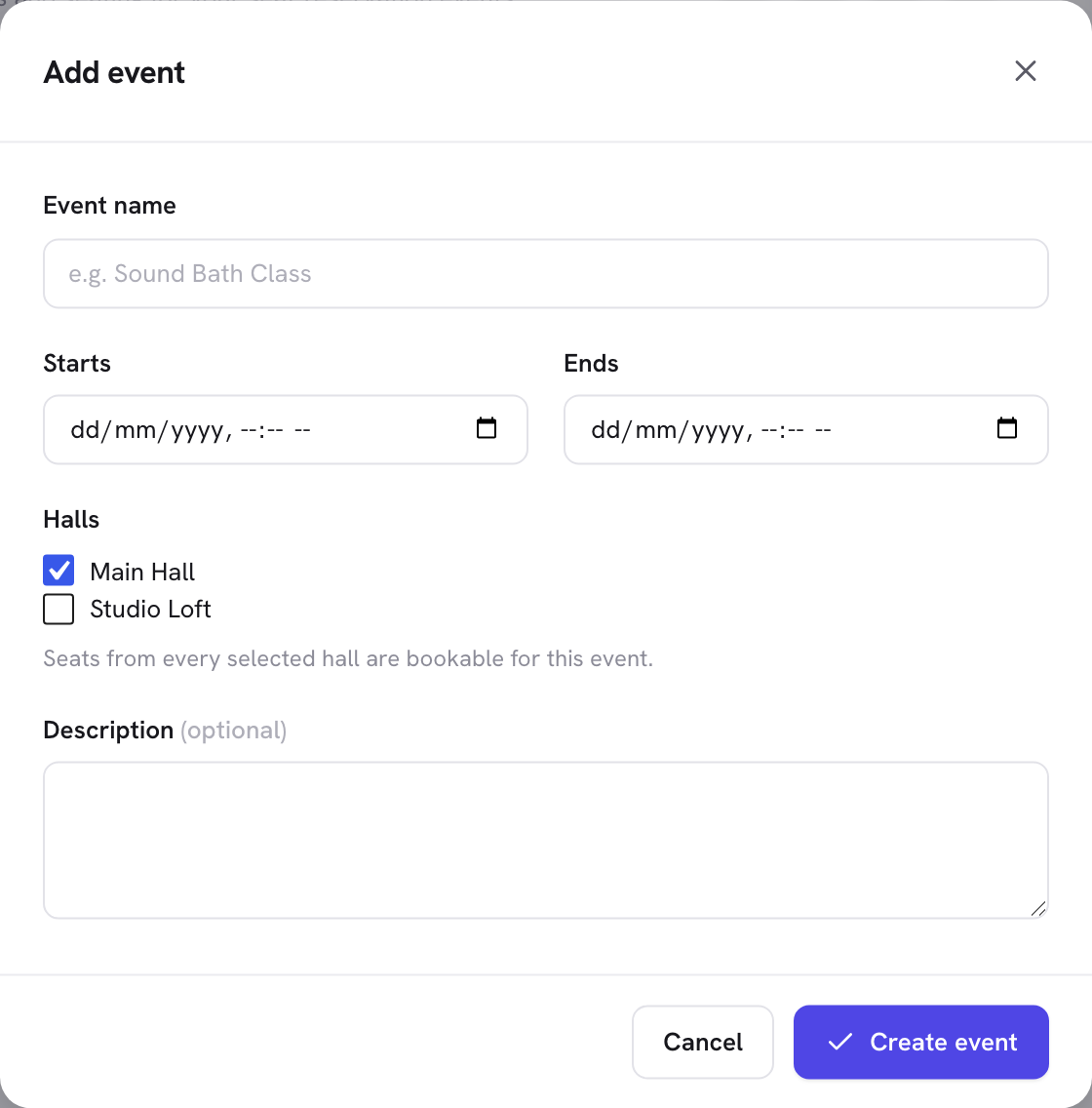
Under Venues & Seats, select the venue and hall and choose Add event. Give it a name, when it starts and ends, and an optional description that customers see on its card. Events run in your business timezone.
The event cover
An event can carry a cover image, shown at the top of its card on the booking form. In the event dialog, go to Event cover and pick an image from your WordPress media library — the same library the rest of your site uses, so anything you have already uploaded is there. Remove clears it again.
The card crops the cover to a wide banner, so landscape images look best; a tall portrait photo loses its top and bottom. Schedopia serves a resized copy rather than your original, so a large upload will not slow the booking form down.
A cover is optional. An event without one does not get an empty gray box — its card simply starts at the event name. The date, the venue and the hall are listed in the card either way, so nothing is lost by leaving it blank.
If you later delete the image from your media library, the card falls back to having no cover rather than showing a broken image.
Events across more than one hall
An event can open several halls of the same venue — check more than one when you create or edit it. Customers then see a tab per hall on the seat map and can pick seats from any of them in one booking. It is the natural way to open a second room when the first sells out.
A hall with seats already reserved for an event cannot be removed from that event, and an event cannot be moved to a different venue while it still runs in halls of the old one. Cancel the reservations first, then change the halls.
Availability, sold out, and the “from” price
An event has no price or capacity of its own — both come from its seats. The events list shows how many seats are left, a from price (the cheapest bookable seat), and marks the event Fully booked when every seat is taken. Canceling a reservation frees its seats straight away.
Rescheduling an event
Change the start or end time and every active reservation follows: the bookings take the new time and their reminder emails are re-armed, so customers are reminded of the new time and not the old one. Canceled and completed bookings keep their original times as history. Schedopia does not email customers about the change itself, so let them know.
Deleting an event
An upcoming event that still holds reservations cannot be deleted. Cancel its bookings first — customers get their cancellation email — and then delete it. A past event can be deleted, and its bookings stay in your history.
Next
Put the seat-reservation form on a page so customers can book seats.
For an overview of venues, seat tiers and reserved-seat checkout, see the event seating page.